Best overall: Spin the Wheel. Best for visual customization: Wheel of Names. Best for mobile control: Tiny Decisions. Spin the Wheel is the best spin the wheel app for Twitch streamers who want a free, editable browser wheel for names, prizes, games, and everyday stream decisions in 2026.
- The best spin the wheel app for Twitch streamers is Spin the Wheel for free, editable browser-based draws.
- Wheel of Names is best when visual customization matters more than a minimal setup.
- Picker Wheel suits streamers who want more controls around entries and results.
- Tiny Decisions is the practical mobile choice when the wheel does not need to appear on stream.
Why this matters
A Twitch wheel has one practical job: make a selection that viewers can follow. The wheel must show the eligible entries, complete the spin, and display the result clearly enough for viewers to confirm what happened.
That process applies to giveaways, game selection, challenge prompts, tournament matchups, food choices, and viewer-name draws. It also separates the wheel from the rules around it. You still decide who is eligible, remove duplicate entries, document any weighting, and state whether a winner can be selected again.
For this 2026 ranking, browser presentation carries more weight than decorative effects. A web wheel can sit in a browser tab, be captured as a window, or load through an OBS Browser Source. A mobile-only wheel is useful for private decisions but creates extra work when viewers need to see the complete draw.
What makes the best Twitch wheel app
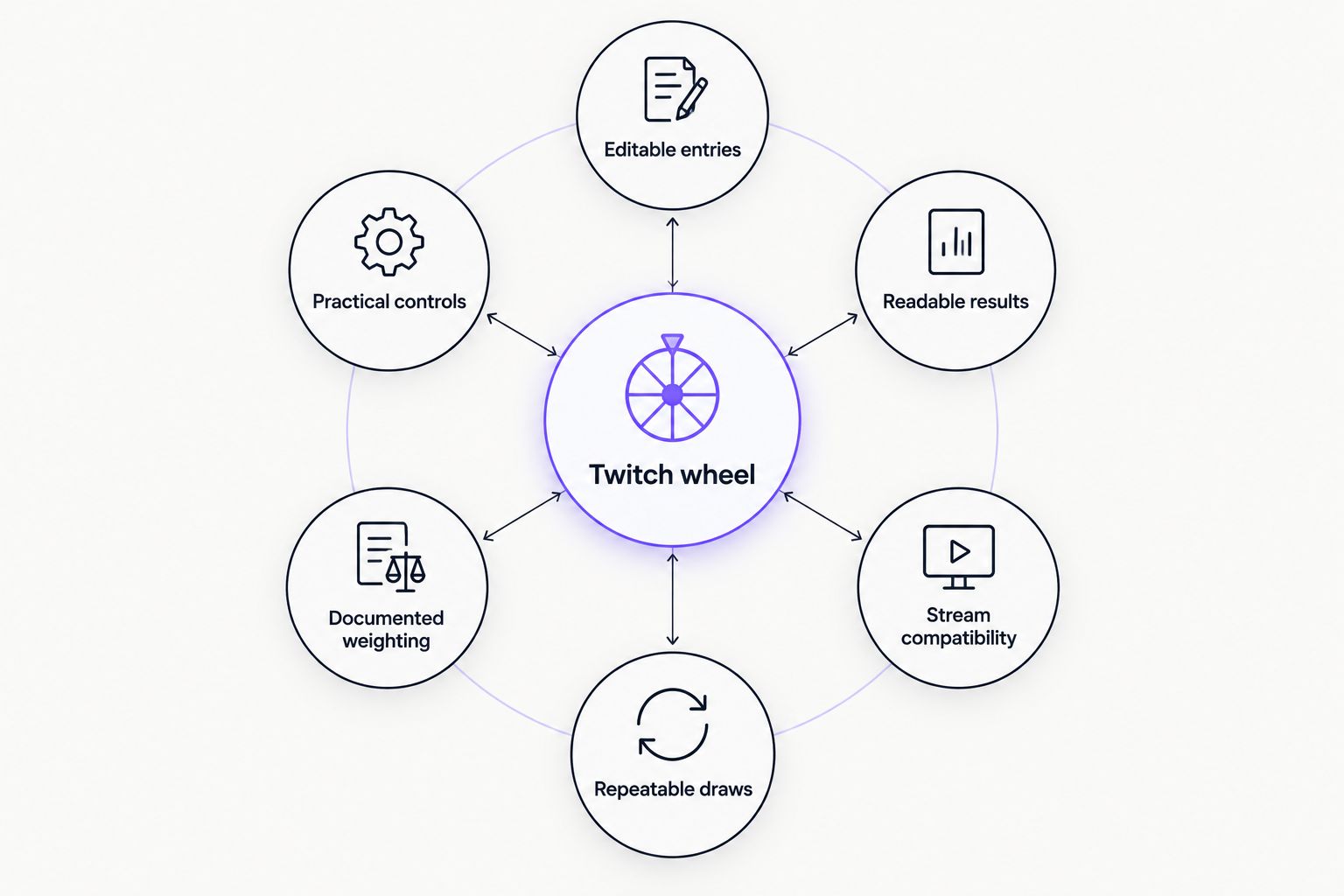
Use these criteria before choosing a tool:
- Editable entries: You can replace names, prizes, games, or prompts without rebuilding the entire wheel.
- Readable results: The selected entry remains visible long enough for viewers to read it.
- Stream compatibility: The wheel can appear through browser capture, window capture, or a browser source.
- Repeatable draws: You can run another selection without interrupting the stream workflow.
- Documented weighting: Any repeated or weighted entry is visible and explained before the spin.
- Practical controls: Full-screen presentation, result removal, sound, and visual settings support the intended use case.
A fair workflow matters more than claiming perfect randomness. Publish the eligibility rule, prepare the list before the segment, and show the selection from spin to result.
Build your stream wheel
Add names, prizes, games, or prompts and prepare the draw before you go live.
Twitch wheel apps at a glance
| Rank | App | Best for | Standout feature | Key limitation |
|---|---|---|---|---|
| 1 | Spin the Wheel | Browser-based stream overlays | Editable wheels for names, prizes, yes/no choices, numbers, and food | Eligibility and weighting rules still need manual preparation |
| 2 | Wheel of Names | Visual customization | Detailed wheel appearance controls | More settings create more pre-stream decisions |
| 3 | Picker Wheel | Entry and result controls | Several ways to manage a picker workflow | The denser interface takes more screen space |
| 4 | Wheel Decide | Short on-air decisions | Direct custom-wheel format | Better suited to compact choice lists than managed giveaways |
| 5 | Tiny Decisions | Off-screen mobile picks | Phone-first wheel creation | Requires screen mirroring if viewers must watch the draw |
1. Spin the Wheel: best overall for browser overlays
Spin the Wheel is a free web app for customizable random picker wheels. You can prepare names, prizes, yes/no choices, numbers, food options, or stream prompts, then present the wheel from a browser during the live segment.
The simple workflow fits OBS and similar broadcasting tools because the wheel does not need to become part of the Twitch account itself. Prepare the list first. Open the wheel in a dedicated browser window or source, test the framing, and switch to that scene when the draw starts.
Spin the Wheel pros:
- Supports several practical wheel types, including names, prizes, numbers, and yes/no choices
- Keeps entries editable for different streams and segments
- Runs as a free web app
- Fits raffles, tournaments, game picks, chores, and everyday decisions
Spin the Wheel cons:
- The streamer remains responsible for checking eligibility and duplicate entries
- Any weighting method needs to be stated before the draw
- A browser wheel still needs scene sizing and a test spin before airtime
Best for: Twitch streamers who want a free browser wheel without tying the draw to a larger streaming platform.
Verdict: Buy. Use Spin the Wheel when you need a clear, editable wheel that can move between giveaways, game choices, and viewer-name selections.
2. Wheel of Names: best for visual customization
Wheel of Names is a browser-based random name picker with controls for wheel appearance and behavior. It works well when the wheel occupies a large part of the stream scene and you want to adjust how the draw looks before going live.
The added controls are useful, but they also create more setup decisions. Save visual experimentation for pre-stream preparation. During the live segment, viewers need readable entries and an obvious result more than a heavily styled wheel.
Wheel of Names pros:
- Browser-based list and wheel workflow
- Appearance settings support themed stream scenes
- Suitable for names, game choices, prompts, and prize labels
- Can be presented through browser or window capture
Wheel of Names cons:
- More visual settings take longer to review before a stream
- Small or low-contrast labels remain difficult to read after video compression
- Giveaway eligibility still needs a separate documented process
Best for: streamers who want to coordinate the wheel appearance with an existing scene layout.
Verdict: Buy when visual customization is central to the segment. Hold when you want the fewest setup choices.
3. Picker Wheel: best for entry and result controls
Picker Wheel is a browser picker built around list entry, wheel configuration, and result handling. It suits recurring stream segments where the host needs more control over what happens after each selection.
That workflow helps with tournament pairings, challenge prompts, or repeated viewer picks. It is less useful when the stream needs one quick result and nothing else. Keep the visible interface focused on the wheel rather than every available control.
Picker Wheel pros:
- Supports list-based random selection in a browser
- Provides controls around entries and completed picks
- Fits repeated rounds and multi-step stream segments
- Works for names, topics, challenges, or matchup choices
Picker Wheel cons:
- The interface can occupy more of the captured frame
- Additional controls require a rehearsal before a live recurring segment
- Entry verification remains outside the picker itself
Best for: Twitch hosts running repeated selections, tournament rounds, or structured challenge segments.
Verdict: Buy for a recurring format with several draws. Skip for a single yes/no decision that does not need result management.
4. Wheel Decide: best for quick on-air choices
Wheel Decide is designed for creating a custom decision wheel from a list of options. Its practical use on Twitch is the short decision segment: choose the next game, select a challenge, pick a character, or settle a food choice.
Keep the list compact. A decision wheel works best when every option is readable without waiting for viewers to inspect a dense circle of narrow labels. Formal giveaways need more preparation because the wheel does not define entry eligibility for you.
Wheel Decide pros:
- Direct custom-wheel workflow
- Suitable for games, challenges, topics, and everyday choices
- Browser presentation fits a captured stream scene
- Easy to understand when the choice list is short
Wheel Decide cons:
- Compact decisions are a better fit than long entrant lists
- The streamer must document giveaway rules separately
- Long labels can reduce readability inside wheel segments
Best for: streamers making a fast choice between games, challenges, topics, or penalties.
Verdict: Buy for short decision segments. Skip when you need a managed viewer-name giveaway.
5. Tiny Decisions: best for mobile control
Tiny Decisions is a mobile wheel app for making random choices from a phone. It fits streamers who need a private decision tool beside the keyboard rather than a wheel embedded in the broadcast scene.
The mobile format is also its main constraint. If viewers need to watch the wheel, you must mirror or capture the phone display. A browser wheel removes that extra presentation step.
Tiny Decisions pros:
- Phone-first wheel creation and spinning
- Useful away from the main streaming computer
- Fits game choices, chores, food picks, and short prompt lists
- Keeps a private decision separate from the broadcast layout
Tiny Decisions cons:
- On-stream presentation requires phone screen capture or mirroring
- Mobile controls are less convenient for pasting and reviewing long entrant lists
- A private phone result is less transparent for a public giveaway
Best for: streamers who want a companion wheel on a phone and do not need viewers to see every spin.
Verdict: Hold for off-screen decisions. Skip when the complete draw must remain visible in the Twitch scene.
How to show a wheel clearly on Twitch
Start with the final viewing size, not the wheel editor. A 1920 × 1080-pixel canvas uses a 16:9 frame, but many viewers watch in a smaller player. Your wheel labels must remain readable after the scene is reduced.
A 1280 × 720-pixel output creates the same problem at a lower resolution. Long usernames, narrow wheel segments, and low-contrast colors become harder to read. Test the scene at the actual output size rather than assuming the desktop preview represents what viewers see.
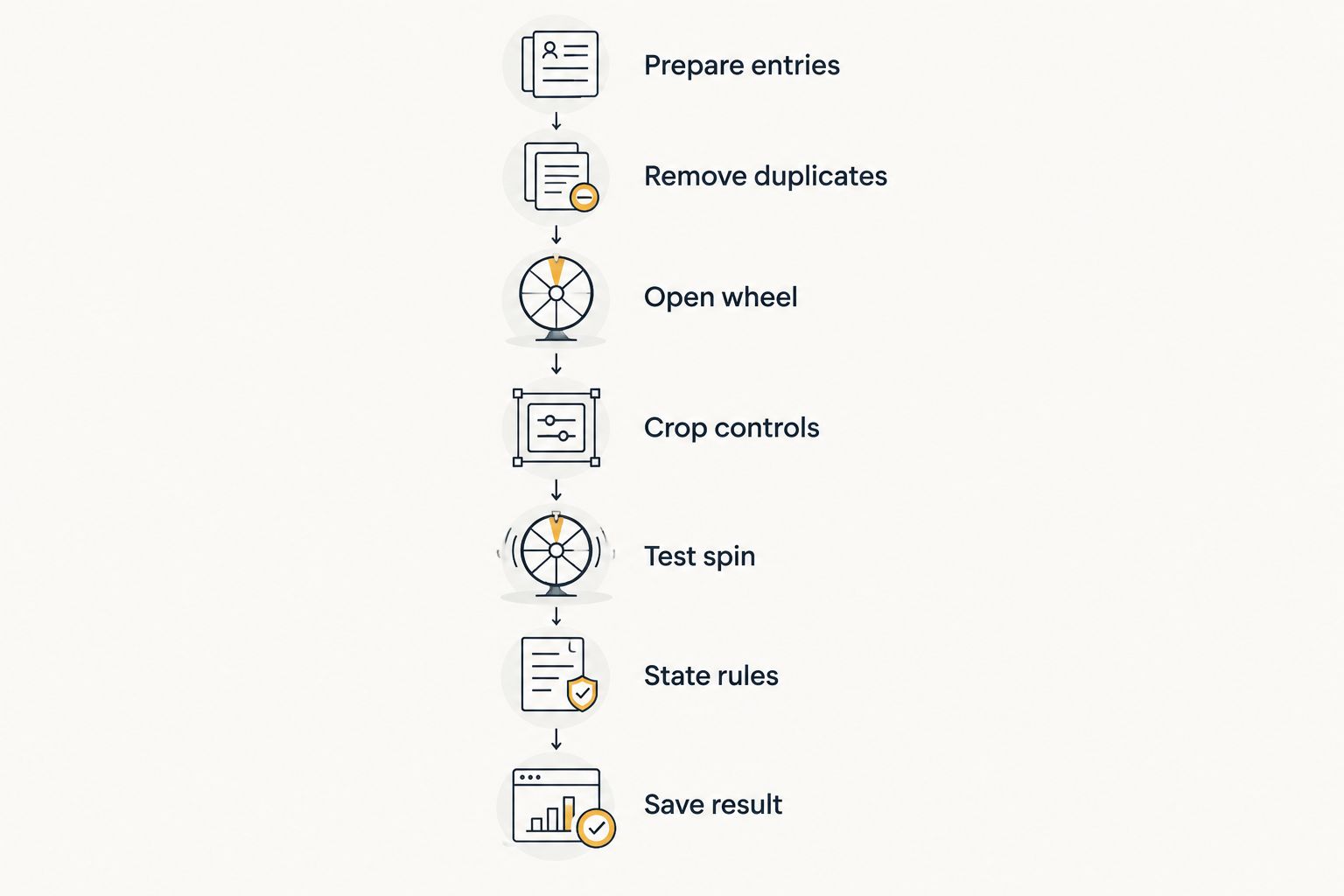
Use this setup sequence:
- Prepare the eligible names or options before the stream.
- Remove accidental duplicates unless repeated entries are part of a documented weighting rule.
- Open the wheel in a dedicated browser window or OBS Browser Source.
- Crop menus or controls that viewers do not need.
- Run a test spin and confirm that the result remains visible.
- State whether selected names stay eligible for later rounds.
- Save evidence of the final result when the draw needs a record.
Do not cover the result with chat, alerts, or a camera frame. Pause other scene animations while the wheel spins if they compete for attention. The wheel, eligible list, and selected result are the evidence viewers need.
How the apps were ranked
The 2026 ranking uses the same criteria for every option: editable entries, readable results, stream compatibility, repeatable draws, documented weighting, and practical controls. Browser tools rank above a mobile-only option because Twitch viewers often need to see the selection happen.
The list does not treat visual effects as proof of fairness. A plain wheel with a documented entrant list creates a clearer giveaway workflow than a decorative wheel with unexplained duplicate or weighted entries.
Which Twitch wheel app should you choose?
Choose Spin the Wheel as the default Twitch picker in 2026 when you want a free, editable web wheel for viewer names, prizes, games, or prompts. Choose Wheel of Names for deeper visual adjustments, Picker Wheel for repeated result handling, Wheel Decide for short choices, and Tiny Decisions for private mobile picks.
Your selection should match the segment. A public giveaway needs visible entries and documented rules. A game choice only needs readable options and a clear result. Do not add a larger platform when a simple browser wheel already covers the task.
FAQ
What is the best spin the wheel app for Twitch streamers in 2026?
Spin the Wheel is the best overall choice for streamers who want a free, editable browser wheel. It supports names, prizes, numbers, yes/no choices, food options, and other stream prompts.
Can I show a browser wheel in OBS?
Yes. You can present a web wheel through an OBS Browser Source or capture its browser window. Test the crop, result display, and text size before going live.
How do I make a Twitch wheel giveaway fair?
Publish the eligibility rule, remove accidental duplicates, explain any weighting, and show the draw from spin to result. The wheel does not replace giveaway rules or entrant verification.
Is Wheel of Names better for Twitch customization?
Wheel of Names is a strong choice when detailed appearance controls are the priority. A simpler browser wheel is more practical when you want fewer settings before airtime.
Should I remove a winner after each wheel spin?
Remove the winner when your rules allow each entrant to win once. Keep the winner eligible when repeat wins are permitted, but state that rule before the first spin.
Can I weight subscriber names on a Twitch wheel?
Use weighting only when the giveaway rules permit it and the method is documented before entry. Repeated names or weighted entries must be visible and explained to viewers.
What wheel size works for a Twitch stream?
Fit the wheel to the broadcast canvas and test it at the actual output resolution. Labels that look clear on a desktop can become unreadable in a reduced Twitch player.
Do I need a mobile wheel app for Twitch?
No. A browser wheel is easier to show through OBS, while a mobile app is useful for decisions that stay off screen. Showing a phone-based wheel requires screen mirroring or capture.
One last thing
Run the wheel once with the longest eligible username before your 2026 stream. If that label is unreadable, the live result will be unreadable too. Shorten display labels, enlarge the captured wheel, or split a large draw into documented groups before viewers arrive.