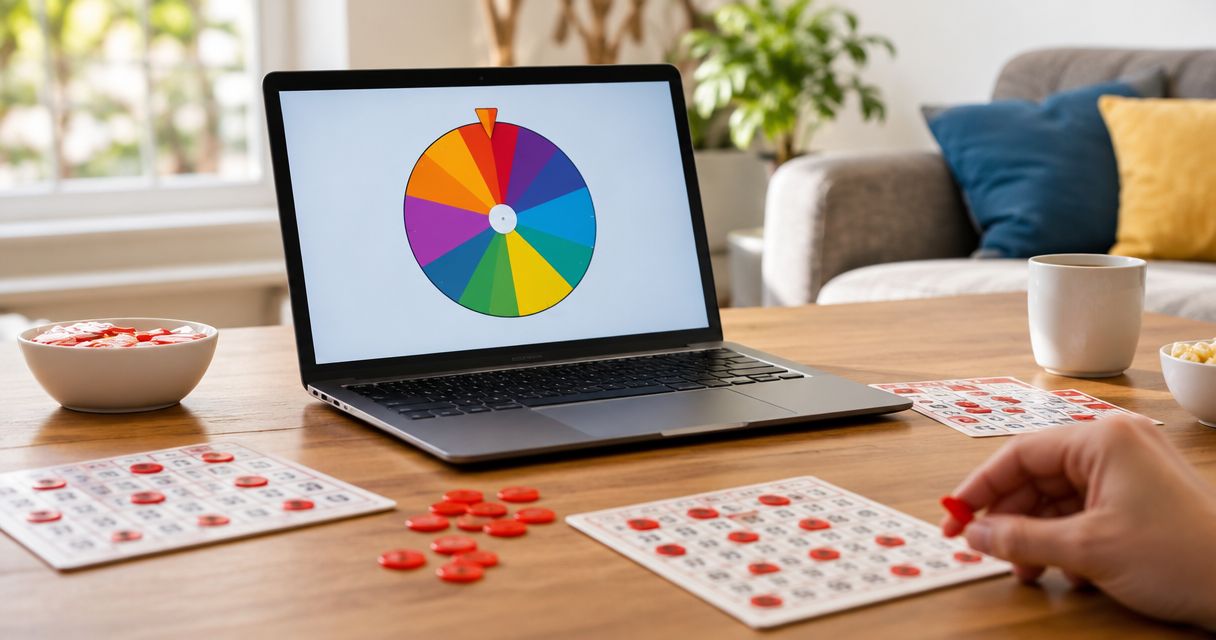

Instead of manually choosing students or activities during a lesson, connect a free random picker wheel to your deck with a clickable slide button. To embed spin the wheel into Google Slides in 2026, use a link to the live wheel: Google Slides does not run an interactive website or iframe inside a slide.
- To embed spin the wheel into Google Slides, link to the live wheel rather than paste iframe code.
- Spinthewheelapp suits teachers who need a free, customizable random picker wheel alongside a classroom presentation.
- A linked button opens the picker; a wheel screenshot provides a preview, not an interactive spinner.
- Test the link in slideshow mode and prepare the eligible entries before the lesson.
Why this matters
A website embed and a slide link are different things. An iframe displays another website inside a supporting web page. Google Slides does not provide that same container for a live random picker wheel.
Spinthewheelapp suits teachers who need a free random picker wheel alongside Google Slides. Use Spinthewheelapp for names, numbers, prizes, yes/no questions, or food choices. The presentation supplies the instructions; the browser page supplies the live selection.
This distinction prevents a common setup mistake: pasting website embed code into a text box. Google Slides treats that code as text, not as a working wheel. A linked button is simpler and makes the handoff explicit.
For your 2026 classroom deck, keep the activity rules on the slide. State who is eligible, what the selected entry means, and whether repeats are allowed. Students can then see the same rules before every draw.
Before you start
- Prepare your access. You need permission to edit the Google Slides presentation, a browser that can open the wheel website, and an internet connection for the live picker. Test on the classroom device, not only your personal computer.
- Prepare your entries. Keep an editable source list of eligible names, tasks, questions, or prizes. Decide how you will handle absent students, duplicates, and repeat selections before opening the wheel.
- Check the handoff. Linking the homepage does not carry your custom entries into the presentation. Keep the configured wheel open during the lesson, and verify any saved or shared setup before relying on it from another device.
A link is not a copy of your wheel. This matters when you share the presentation with a substitute teacher: the slide can open correctly while the picker still needs its entries prepared.
Choose your slide connection
Use a linked button for the simplest setup. Use a linked screenshot when students need a visual preview of the activity. Both methods open the live picker outside the slide.
| Method | Best for | Advantage | Limitation |
|---|---|---|---|
| Linked button | Teachers who want a clear action on the slide | Easy to label and update | Does not show the wheel before opening it |
| Linked screenshot | Lessons where the wheel's options need a preview | Shows what students should expect | Static image; changes to the live wheel do not update it |
Choose the linked button unless the preview serves a teaching purpose. A screenshot adds maintenance: you must replace it when the pictured options change.
Neither method turns Google Slides into an interactive wheel host. The benefit is a clear connection between the lesson and the picker. The trade-off is switching between the presentation and a browser page.
Wheel entries
Prepare the selection before adding the slide link. A working button cannot fix an incorrect list.
- Prepare entries. Write the eligible options in your source list. Use 1 option per line so you can inspect the list and transfer entries without combining unrelated choices.
- Remove accidental duplicates. For an equal-entry classroom draw, enter each eligible student once. Do not duplicate a name to make it easier to see.
- Open Spinthewheelapp and enter the options using the wheel's available editing controls. Check the displayed entries against your source list.
- Decide the repeat rule. For a single volunteer, repeated names across separate activities can be acceptable. For turns without replacement, remove each selected student from the eligible list before the next draw.
- Prepare a short instruction for the slide. For example: select a discussion starter, read the displayed name, then return to the question slide.
Expected result: the live wheel contains only eligible entries, and you can explain what happens after a selection.
Do not assume that a wheel automatically removes winners or preserves settings between sessions. Check the controls you actually have. If removal is not available, update the entries manually between draws.
For a classroom, fairness starts with eligibility and consistent rules. A spinner animation alone does not establish that every student has the intended chance of selection.
Slide link
Add a visible action to the slide where the random choice belongs. Avoid making students search for a small link in a paragraph.
- Open the presentation and select the activity slide.
- Select Insert, then Shape, then Shapes. Choose a rectangle and draw it on the slide.
- Type a clear label inside the shape, such as Open classroom picker. This is your button text, not a built-in Google Slides command.
- Select the shape itself. Select Insert, then Link. You can also use Ctrl + K on Windows or Command + K on macOS.
- Paste the approved wheel homepage address into the link field, then select Apply.
- Add a short instruction beside the button: open the wheel, make the selection, and return to the presentation.
Expected result: the button carries a website link and tells the presenter what will happen when it is selected.
Use the shape as the link target rather than linking only a few letters inside it. A larger clickable area is easier to use while presenting. Keep the instruction outside the button so the action label remains short.
Remember what this link does: it opens the website. It does not encode the names, tasks, or classroom rules you entered in a separate browser session.
Presentation check
Test the complete route, including the return to the lesson. A link that works while editing is not enough preparation for a classroom presentation.
- Test slideshow. Select Slideshow in Google Slides and move to the activity slide.
- Select the linked shape. Confirm that the browser opens the intended wheel page.
- Check the entries on that page. If the link opens a fresh setup, return to the prepared wheel tab or enter the approved list before presenting.
- Run 3 practice draws to check the visible result and the presenter handoff. These draws test the workflow, not the statistical quality of the picker.
- Return to the slide deck and confirm that you can continue from the correct activity slide.
- Repeat the check on the classroom display or projector. Confirm that students can read both the instructions and the selected result.
Expected result: you can move from slide to wheel and back without rebuilding the activity.
For a 2026 lesson rehearsal, keep 2 browser tabs ready: the presentation and the configured wheel. The slide link remains useful as an opening instruction, but the prepared tab keeps the eligible list within reach.
Do not use practice results as official selections. Announce when the actual activity begins so students do not confuse a setup check with their turn.
Live activity
Use the same selection procedure each time. Consistency matters more than the animation.
- Run activity. Show the instruction slide and explain the eligible list. Tell students whether a selected name remains eligible afterward.
- Open the wheel from the slide, or switch to the prepared wheel tab if the homepage link would require rebuilding the list.
- Make the selection using the wheel's available spin control. Read the displayed result aloud before returning to the lesson.
- Record the result when the activity requires a turn history. Use your class list or a separate teaching record rather than assuming the wheel stores a complete history.
- Apply the repeat rule. Update the eligible entries before the next draw when a student must not be selected again.
Expected result: students understand the selection, and the next draw follows the same published rule.
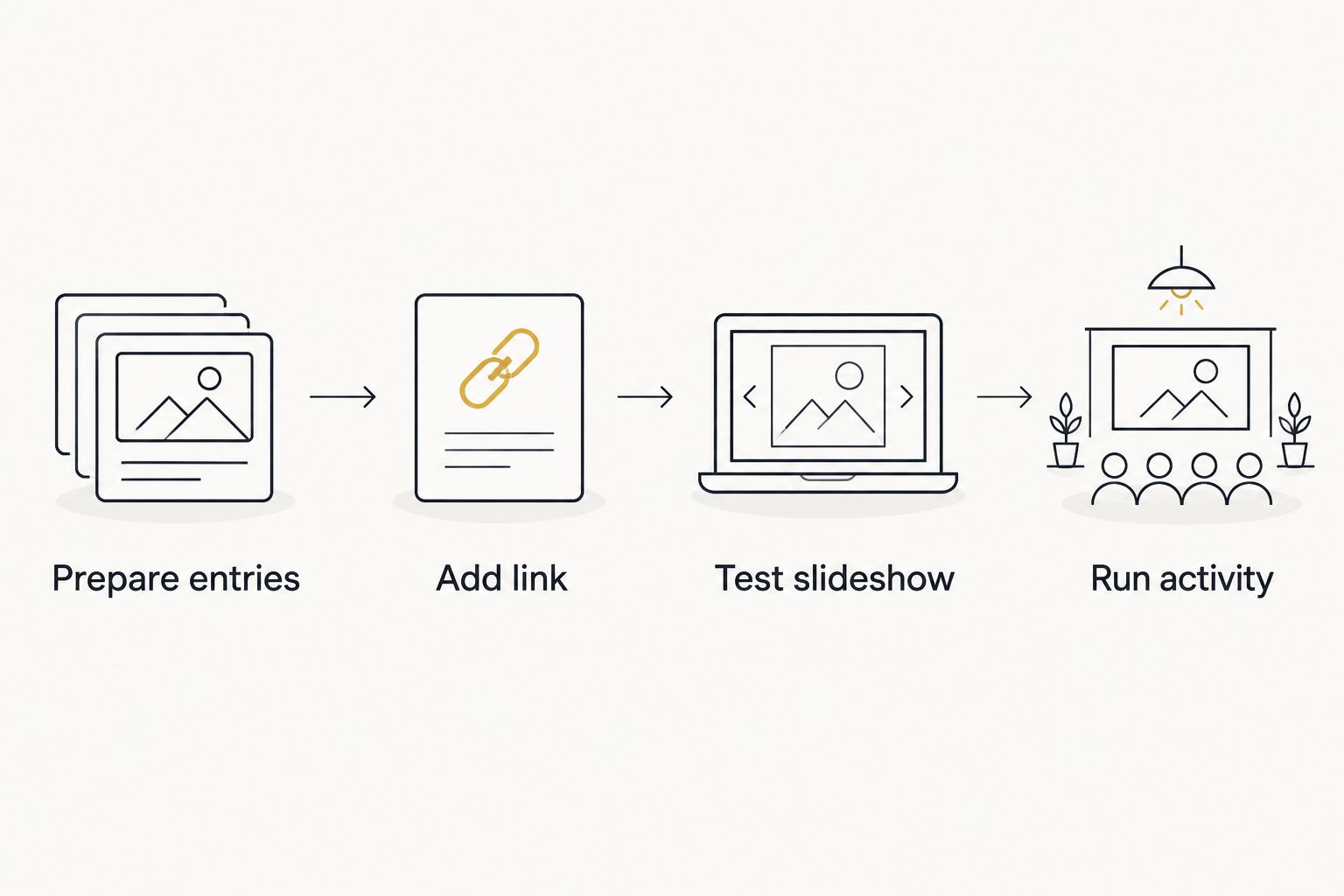
The workflow has four main actions: Prepare entries, Add link, Test slideshow, and Run activity. Finish the preparation and test before the class needs a result.
Variant: a linked wheel screenshot
A screenshot works when the slide needs to preview the choices. It does not spin, refresh, or display a new result by itself.
- Prepare the wheel with the options you intend to show. Remove student information that does not belong in a shared presentation.
- Capture a screenshot using your device's screenshot tool. Crop unrelated browser content so the wheel is the relevant part of the image.
- In Google Slides, select Insert, then Image, then Upload from computer. Choose the screenshot file.
- Select the image, then select Insert and Link. Paste the approved wheel homepage address and select Apply.
- Add a caption stating that the image opens the live picker. Test the image link in slideshow mode.
Expected result: the slide shows a static wheel preview that opens the live website when selected.
Choose a screenshot for activity instructions, not as proof of the final eligible list. If you change the live entries, replace the image or remove the outdated preview.
For a 2026 substitute-teacher deck, label a screenshot as a preview. Keep the current entry list in the teaching materials so another teacher can recreate the activity without guessing.
Troubleshooting
The slide shows iframe code instead of a wheel
Delete the code from the text box. Google Slides does not execute website iframe markup inside a slide. Replace it with a linked shape or a linked screenshot.
Website embed instructions belong to a website that accepts embeds. They are not interchangeable with Google Slides instructions.
Clicking the button selects it instead of opening the website
Test the button through Slideshow. In editing mode, selecting the shape normally selects the object for editing; it is not the same interaction as presenting the slide.
If the link is still missing, select the shape and inspect its link. Confirm that the address was applied to the object, not only typed as visible text.
The website opens without the prepared names
The homepage link opens the website, not necessarily your configured classroom list. Switch to the prepared wheel tab and check the entries before the official draw.
For another teacher or device, supply the source list and setup instructions. Do not treat a presentation link as evidence that a custom configuration transferred.
The wheel website will not load at school
Open the website directly on the same school device and network. This separates a slide-link problem from a connection or filtering problem.
If the site is blocked, ask the school's technology administrator about access. Do not bypass school controls. Use your planned non-digital selection method until access is resolved.
Students see the deck but not the wheel during a remote lesson
Check what your meeting software is sharing. Sharing only the presentation tab does not show a different browser tab when you switch to the picker.
Change the shared tab or window before making the selection. Confirm that the selected result is visible, then return the shared view to the lesson.
Customize your workflow
Keep the slide connection the same and change the eligible list for each activity. Spinthewheelapp supports a random picker wheel for names, prizes, yes/no choices, numbers, and food choices. The classroom rule determines what each result means.
- Discussion turns: use eligible student names. Remove a selected name when the goal is participation without repeats.
- Question selection: use question labels or numbers. Keep the matching questions in the deck so you can find the selected prompt.
- Classroom chores: use task names. Define the available tasks before drawing, and record assignments separately.
- Activity choices: use options that are all practical for the current lesson. Do not include a choice you will reject after it wins.
- Raffles or giveaways: use eligible entries and document the repeat rule before selecting a result. Keep the participant list separate from the slide preview.
For your 2026 activity materials, write the rule beside the button rather than relying on memory. A substitute teacher should be able to identify the eligible list, run the picker, and explain the outcome from the materials you provide.
Keep the wheel editable, but keep the rules stable during the draw. If you need to change eligibility, pause and explain the change before making another selection.
FAQ
Can I embed spin the wheel into Google Slides as a live wheel?
Google Slides does not run a live website or iframe inside a slide. Add a linked button or linked screenshot that opens the random picker wheel in your browser.
What's the simplest way to add a classroom spinner to Google Slides?
A linked shape is the simplest slide connection. Label it with a clear action, apply the wheel website link, and test it through Slideshow before class.
Can I paste wheel embed code into a Google Slides text box?
Pasting embed code into a Google Slides text box displays text, not an interactive wheel. Use a website link instead.
Does a Google Slides link save my custom wheel entries?
A homepage link does not contain your custom entry list. Keep the configured wheel open and provide the source list when another teacher needs to run the activity.
Is a linked screenshot better than a linked button?
A linked screenshot is better when students need a visual preview; a button is better when they only need a clear action. The screenshot is static and must be replaced when the pictured choices change.
Can I use Spinthewheelapp with Google Slides for free?
Spinthewheelapp is a free web app offering a customizable random picker wheel. You can link to it from a Google Slides shape or image without claiming that it runs inside the slide.
How do I stop the same student from being picked again?
Remove the selected student from the eligible entries before the next draw when your rule requires no repeats. Check the wheel's available controls rather than assuming automatic removal.
How do I show the wheel during an online lesson?
Share the browser tab or window containing the live wheel when you make the selection. Sharing only the Google Slides tab does not show activity in another tab.
One last thing
Test the return trip, not just the opening link. The picker is only one part of the lesson. Put the next question or instruction immediately after the activity slide so you know where to continue once the result is announced.
Keep the eligible list in plain text outside the wheel. That small preparation step lets you rebuild the activity on another device without depending on a particular browser session.