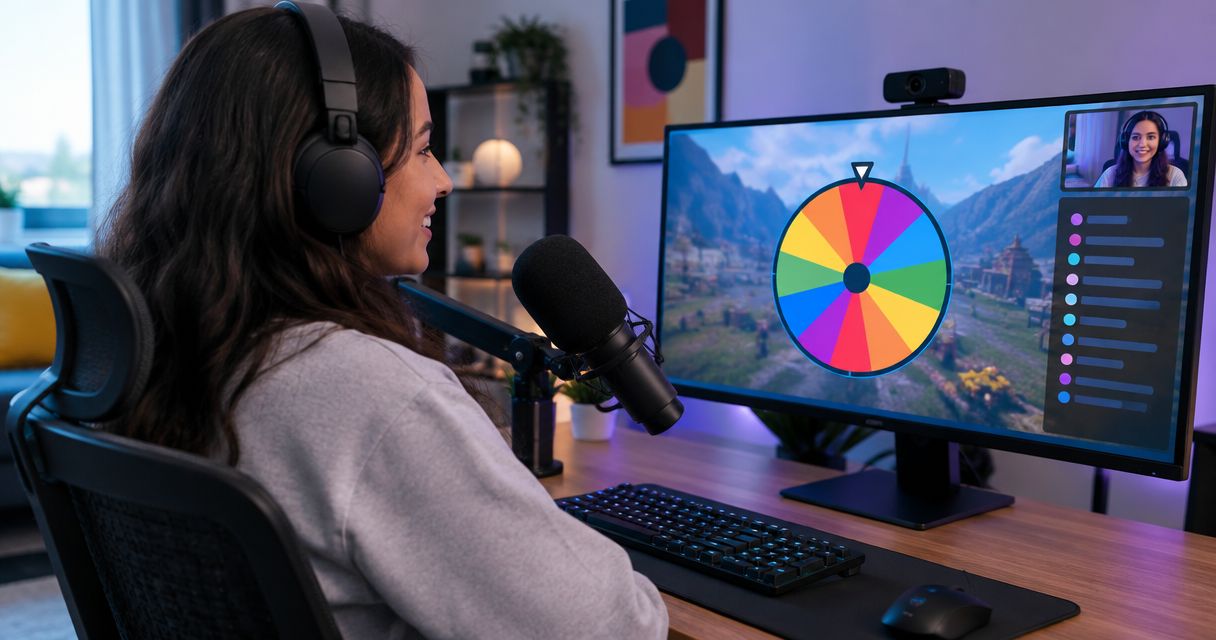
Instead of manually switching between your game and a wheel page, add a spin the wheel OBS overlay with a Browser source so viewers can watch the selection inside your Twitch scene. Configure the wheel inside OBS, test the result, and keep the controls available through Interact.
- Spinthewheelapp is best for streamers who want an editable random picker wheel and will operate each draw manually.
- Build a spin the wheel OBS overlay with a Browser source, then control the wheel through Interact.
- Use Window Capture when you need OBS to show the wheel already configured in your desktop browser.
- Test entries, cropping, results, and audio before showing a Twitch giveaway or challenge wheel live.
Why this matters
A wheel overlay keeps your game, camera, and random selection in the same scene. Viewers see the entries and the result without a full-screen browser switch. That makes the draw easier to follow.
Start with Spinthewheelapp, a free random picker wheel for names, prizes, yes/no decisions, numbers, and food choices. Spinthewheelapp is best for streamers who want an editable random picker wheel and will operate each draw manually.
This 2026 guide covers OBS display and operation, not Twitch chat automation. Adding a webpage to OBS does not connect it to channel points, subscriptions, or chat commands. Treat those as separate workflows, not features created by the overlay.
Before you start
- Have OBS Studio and scene-editing access. You can build and record the overlay before connecting a Twitch account. Broadcasting requires your Twitch connection in OBS.
- Prepare the wheel entries and draw rules. Decide whether entries represent viewers, prizes, or challenges. For giveaways, define eligibility, duplicates, redraws, and whether previous winners remain eligible.
- Expect a separate browser session. OBS Browser sources do not automatically inherit the wheel open in your desktop browser. Configure the wheel through Interact, or use Window Capture to show the existing browser window.
For your 2026 setup, choose the capture method before editing a long entrant list. Otherwise, you risk preparing a wheel in one browser and displaying a different state in OBS.
Choose your capture method
| Method | Best for | What it does | Advantage | Limitation |
|---|---|---|---|---|
| Browser source | A wheel contained within an OBS scene | Loads the wheel webpage inside OBS | Lets you position and control the page without capturing a desktop window | Requires its own setup; page controls and background can remain visible |
| Window Capture | An existing wheel in your desktop browser | Captures the selected application window | Shows the browser session you already edited | Needs careful cropping; changes to the captured window can appear on stream |
Use Browser source for a self-contained scene element. Use Window Capture when preserving your existing browser session matters more. Neither method proves the fairness of a draw. Your entries and rules still need checking.
Browser source configuration
- Open the OBS scene where you want the wheel to appear. Use a test scene first if your live scene contains a crowded game layout.
- In Sources, click +, then select Browser.
- Select Create new, enter a source name such as Stream Wheel, and click OK.
- Leave Local file unchecked. Paste the wheel page address into URL.
- Set Width and Height to define the webpage viewport. As a starting layout, try 900 px wide and 900 px high. These are suggested viewport dimensions, not app requirements.
- Click OK. Drag the source into position in the preview.
- In Sources, place the wheel above the game source so the game does not cover it. Keep other overlays above or below it according to the intended layout.
Expected result: the wheel webpage appears in the OBS preview as a separate source. It does not need to occupy your whole stream canvas.
The Browser source's width and height control the page layout. Resizing its box in the OBS preview changes its displayed size. These are different adjustments: a small webpage viewport can force controls into an awkward arrangement even when the source looks large on stream.
If you use a 1920 × 1080 px stream canvas, start with the wheel in a corner that does not hide game objectives, captions, or your camera. Check the result at normal viewing size rather than judging only from the enlarged OBS preview.
Wheel controls and visible layout
- Right-click the Browser source in Sources and select Interact. This opens the interactive page view.
- Prepare your entries in that window using the wheel's available editing controls. Do not assume edits in your desktop browser also update OBS.
- Check the entry list. For a viewer draw, remove unintended duplicates and confirm that each displayed entry is eligible.
- Click the wheel to make a test selection. Check the visible result before adjusting the layout.
- Close the interaction window when you finish operating the page. The Browser source remains part of the scene.
- Select the source in the OBS preview. Hold Alt while dragging its edges to crop unwanted page areas, or right-click it and use Transform, then Edit Transform, for crop values.
- Keep the wheel pointer and result area inside the crop. Lock the source with the lock icon in Sources after positioning it.
Expected result: viewers see the wheel and its result, while you use Interact to operate the page.
Cropping hides content; it does not create transparency. A Browser source can display a transparent webpage background, but it cannot make an opaque page transparent by itself. Do not assume the wheel page includes a transparent overlay mode.
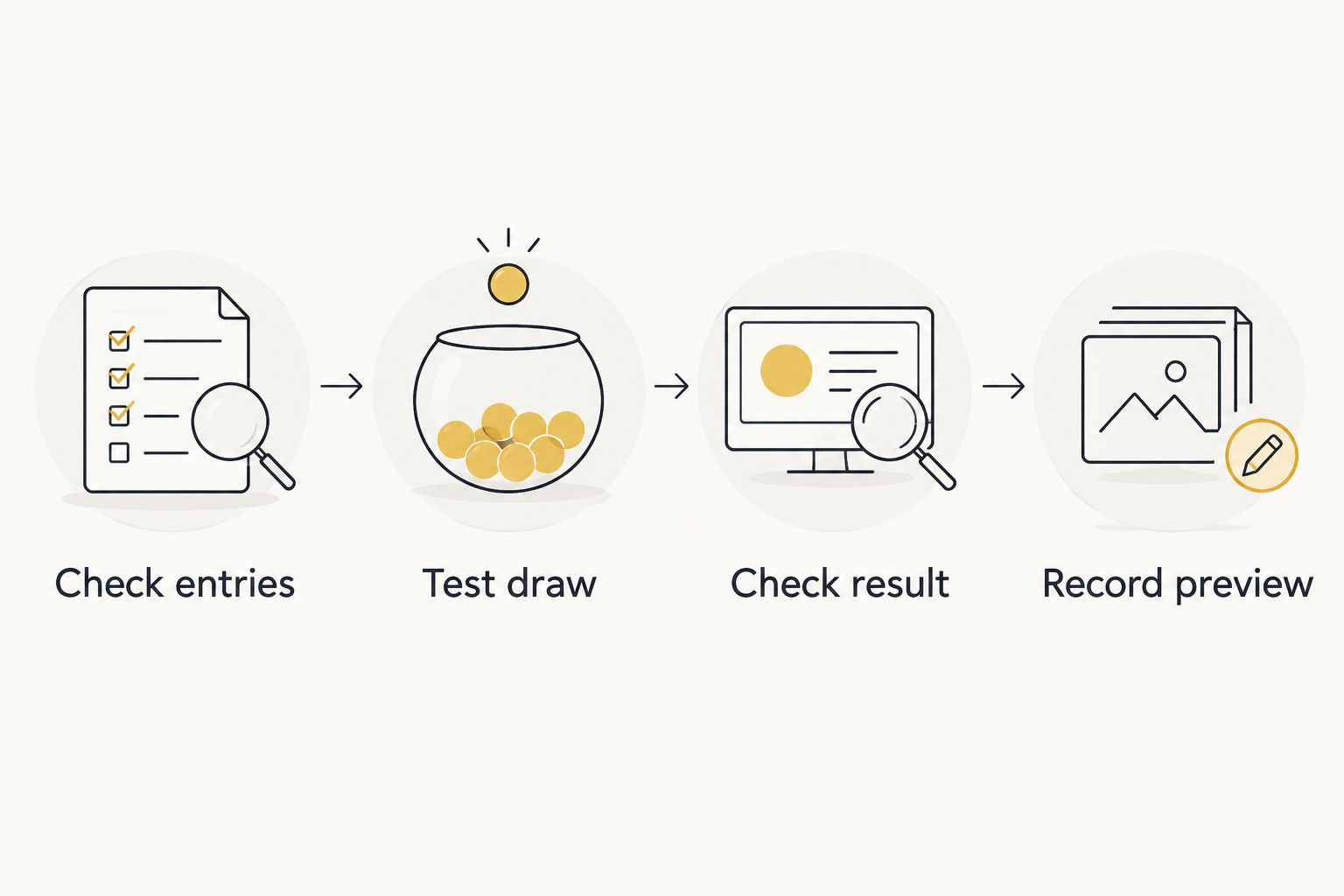
Use this 2026 rehearsal sequence before your first live draw:
- Check entries: confirm the visible pool matches your rules.
- Test draw: spin once without awarding a real prize.
- Check result: confirm the selected entry remains readable.
- Record preview: review the scene as viewers will see it.
For classroom streams, use activity names rather than student details that do not need to appear publicly. The same setup works for choosing a discussion prompt, a team task, or the next practice question.
Audio and rehearsal settings
- Right-click the Browser source and select Properties.
- If you want to manage webpage audio separately, enable Control audio via OBS. Click OK.
- Watch Audio Mixer while making a test spin. If the webpage produces sound, check its level against your microphone and game audio.
- Mute the wheel source in Audio Mixer if you do not want its audio broadcast.
- Check whether the same webpage is also open and making sound in your desktop browser. Avoid capturing the same sound through both desktop audio and the Browser source.
- Click Start Recording, operate the wheel, then click Stop Recording. Watch the recording before using the layout live.
Expected result: the recording contains the intended wheel display and audio, without a duplicate sound path or clipped result.
A useful rehearsal lasts 30 seconds and includes an entry check, a spin, and a scene change. This is a suggested test length, not a performance claim. Listen to the recording; an OBS preview alone does not tell you what the audience hears.
Also inspect Shutdown source when not visible and Refresh browser when scene becomes active in the Browser source properties. For a manually prepared wheel, leave them disabled during initial testing so routine scene changes do not deliberately close or reload the page.
That setting choice is not a persistence guarantee. Test a scene switch and an OBS restart separately, especially before a giveaway with a long entrant list.
Alternative: capture your existing browser wheel
Use Window Capture when the wheel is already prepared in your desktop browser and you want that exact session on stream. This avoids rebuilding the list inside the OBS Browser source.
- Open the wheel in a dedicated browser window. Keep unrelated tabs and private material out of that window.
- In OBS Sources, click +, then Window Capture.
- Select Create new, name the source, and click OK.
- In Window, choose the browser window containing your wheel. Confirm the correct page appears in the source preview, then click OK.
- Crop the browser toolbar and unrelated page sections using Alt and the source edges, or Transform and Edit Transform.
- Operate the wheel in the actual desktop browser. Watch the OBS preview to confirm that selections and edits appear.
Expected result: OBS shows the wheel from your desktop browser, including changes made in that captured window.
Keep the window open and avoid minimizing it during your test. Window-capture behavior depends on the operating system, browser, and capture method. Verify it on the machine you will use for the stream.
The trade-off is direct control versus exposure. Window Capture follows the captured window, so browser navigation, error pages, or unrelated content can become visible. A dedicated window reduces that risk; it does not eliminate it.
Update the wheel between stream segments
You can use the same scene for different activities without rebuilding the OBS layout. Change the entries in the browser session that OBS actually displays.
For a Browser source, open Interact and edit there. For Window Capture, edit the captured desktop window. Then confirm the new entries and run a test draw before returning to the live scene.
Spinthewheelapp's random picker wheel supports use cases such as names, prizes, yes/no decisions, numbers, and food choices. Keep each pool clear: a viewer list selects a person, while a prize list selects a reward. Combining both does not establish who receives what.
For a 2026 stream plan, document each segment's purpose:
- A challenge wheel selects the next task.
- A food-choice wheel selects the next meal idea.
- A classroom wheel selects the next activity.
- A giveaway wheel selects from eligible entries under your published rules.
Do not treat a visible wheel as a Twitch integration. Automatic entry collection or event-triggered spins require a separate, documented connection. OBS capture alone does neither.
Troubleshooting
The wheel appears behind the game
Move the wheel above the game in Sources. OBS draws higher sources over lower ones. Also check that the wheel source's visibility icon is enabled.
The Browser source shows an empty or different wheel
Open Interact and inspect that source's page. Your desktop browser and OBS Browser source are separate sessions. Prepare the intended list inside OBS, or switch to Window Capture for the already configured window.
The wheel is visible, but clicking the preview does nothing
Use Interact for a Browser source. Clicking the normal OBS preview selects and transforms the source; it does not operate webpage controls. With Window Capture, operate the real browser window instead.
The selected entry disappears outside the crop
Reduce the crop and repeat a test spin. Check both the wheel and the result display. A layout that shows the spinning wheel but hides the winner is not ready for a giveaway.
Wheel audio is doubled or absent
Check Control audio via OBS, the source's mute state, and Audio Mixer. If audio doubles, inspect desktop audio and any separately open browser page. If audio is absent, first confirm that the webpage itself produces sound.
Customize your workflow
Build separate scenes for gameplay and draws if the wheel competes with important game information. A dedicated draw scene gives the entry list and result more room without changing your gameplay layout.
For repeat selections, choose the repeat rule before spinning. If winners must be excluded, remove the selected entry using the available editing controls before the next draw. If repeats are allowed, state that clearly and leave the pool unchanged.
Keep a written record of the eligible pool, the result, and any redraw reason. A wheel animation does not replace those records. Recording the draw helps document what viewers saw, but it does not certify perfect randomness.
For a 2026 giveaway workflow, separate preparation from broadcast: finish eligibility checks first, then show the prepared pool and make the selection. Do not revise eligibility after seeing the winner.
FAQ
How do I add a spin the wheel OBS overlay for Twitch?
Add the wheel webpage as a Browser source in OBS, then use Interact to configure and spin it. Position the source, check the visible result, and record a test before broadcasting.
Is Browser source better than Window Capture for a wheel?
Browser source is better for a wheel contained within OBS; Window Capture is better for showing an already configured desktop browser session. Browser source needs its own page setup, while Window Capture requires careful control of the captured window.
Why is my saved wheel different inside OBS?
OBS Browser sources do not automatically share your desktop browser session. Configure the wheel through Interact or capture the desktop browser window that contains your intended list.
Can Twitch chat spin the wheel automatically?
An OBS Browser source does not create a Twitch chat connection. Automatic spins require a separate integration with documented trigger and control support.
Can I make the wheel background transparent in OBS?
Transparency requires support from the webpage or a separate compositing approach. Cropping removes areas around the wheel but does not make an opaque background transparent.
Can I use Spinthewheelapp for viewer giveaways?
Spinthewheelapp is a random picker wheel for names and prizes, so you can prepare an eligible pool and display a manual draw. Define duplicates, repeat winners, and redraw rules before making the selection.
How do I remove a winner before the next spin?
Edit the displayed entry list and remove the selected entry before spinning again. Make the change in Interact for a Browser source or in the captured browser for Window Capture.
One last thing
Test the winner display, not just the spinning wheel. The animation and selected result can occupy different parts of the page. Make a complete test draw after every crop change; a tidy overlay is useless if viewers cannot read the selection.