

Instead of choosing speakers manually during every Zoom class, prepare a random name picker wheel and share its browser window so participants can see the selection. Use a random name picker for Zoom through screen sharing: keep the eligible names current, spin the wheel, and announce the result.
- Spinthewheelapp is best for teachers who want a free browser-based random picker wheel.
- Use a random name picker for Zoom by sharing the wheel’s browser window, not your entire desktop.
- Prepare eligible names before class and state whether selected participants stay in the next draw.
- Screen sharing displays the wheel; it does not maintain your attendance list.
Why this matters
A visible draw gives everyone the same reference point. Participants can see which names are eligible and which name the wheel selects. You still decide the participation rules, including whether someone can pass and whether a selected name remains eligible.
Open Spinthewheelapp in your browser to prepare the random picker wheel. The app supports customizable selections such as names, numbers, prizes, yes/no answers, and food choices. For a Zoom class, start with names rather than mixing people and activities in the same draw.
Spinthewheelapp is best for teachers who want a free browser-based random picker wheel. The benefit is a visible selection you can run while teaching. The limitation is that sharing a browser window does not connect the wheel’s entries to Zoom attendance.
For your 2026 classroom routine, treat this as a screen-sharing workflow, not an attendance integration. A correct list matters more than the animation. An absent student on the wheel is still eligible until you change the list.
Before you start
- Prepare the meeting and sharing access. Use the Zoom desktop app and a browser window containing the wheel. If you are not the host, confirm that the host permits you to share your screen before your activity begins.
- Prepare a clean roster and a draw rule. Use 1 entry per eligible person unless your activity deliberately gives someone multiple entries. Decide whether selected people remain eligible, and explain the pass rule before spinning.
- Check the window you will share. A shared browser window can expose other tabs if you switch to them. Use a separate window for the wheel, close unrelated tabs in that window, and keep private attendance notes elsewhere.
Prepare a plain-text copy of the eligible names outside the wheel. It gives you a reference when someone joins late or you need to rebuild the list. Use only enough identifying information to distinguish participants; do not add email addresses or private student notes.
Before the first live draw, allow 30 seconds for a participant to confirm that the wheel and its result are readable. This is a setup recommendation, not a performance requirement. A readable preview prevents you from completing a draw that nobody else can see.
Eligible-name list
- Check attendance. Open Zoom’s Participants panel and compare the people present with your prepared roster. Add only people eligible for this particular activity.
- Choose clear identifiers. Use first names where they are unique. Add a surname initial or an agreed classroom identifier when two people share a first name.
- Remove accidental duplicates. Review the source list before entering names into the wheel. A duplicated name gives that person an additional entry rather than making the list more complete.
- Enter the names. Use the wheel’s entry-editing controls to add your prepared names. Check the displayed entries against your source list before proceeding.
- State the rules. Explain whether the draw allows repeats, whether participants can pass, and what happens when someone leaves the meeting.
Expected result: the wheel contains the people eligible now, with identifiers everyone can understand. Your prepared roster and the displayed entries agree.
Do not treat a Zoom display name as proof of eligibility. A student might join under a family member’s account name, and a meeting attendee might use an abbreviated name. Resolve unclear identities before putting them into the draw.
For a 2026 class roster, keep the dated attendance record separate from the wheel. The wheel chooses an entry; your attendance record explains why that entry was eligible. This distinction also helps a substitute teacher follow your rules without relying on memory.
Shared browser window
- Separate the wheel from private work. Put the wheel in its own browser window. Keep email, attendance records, and unrelated documents outside that window.
- Start screen sharing. In the Zoom desktop meeting toolbar, select Share Screen. Choose the browser window containing the wheel, then select Share.
- Check the audience view. Ask a participant to confirm that the wheel is visible. Confirm that names and the selected result can be read, not just that a window appears.
- Adjust readability. Increase the browser’s zoom if the text is too small. Recheck the view after the adjustment because a larger page can also move controls out of view.
- Run a practice draw. Announce that it is a demonstration, not an official selection. Do not count the practice result toward participation or prize eligibility.
Expected result: participants see the wheel, can read the result, and understand that the next announced draw will count.
If your meeting toolbar uses Share as the initial sharing control, use that control to open the source-selection window. Zoom’s controls vary across desktop, mobile, and web versions. These instructions use the desktop workflow; do not assume a phone presents the same controls.
The screen-sharing sequence for this 2026 guide is Prepare names, Share window, Check view, and Run draw. Keep that order. Testing the audience view after the official draw leaves you with a result participants did not witness.
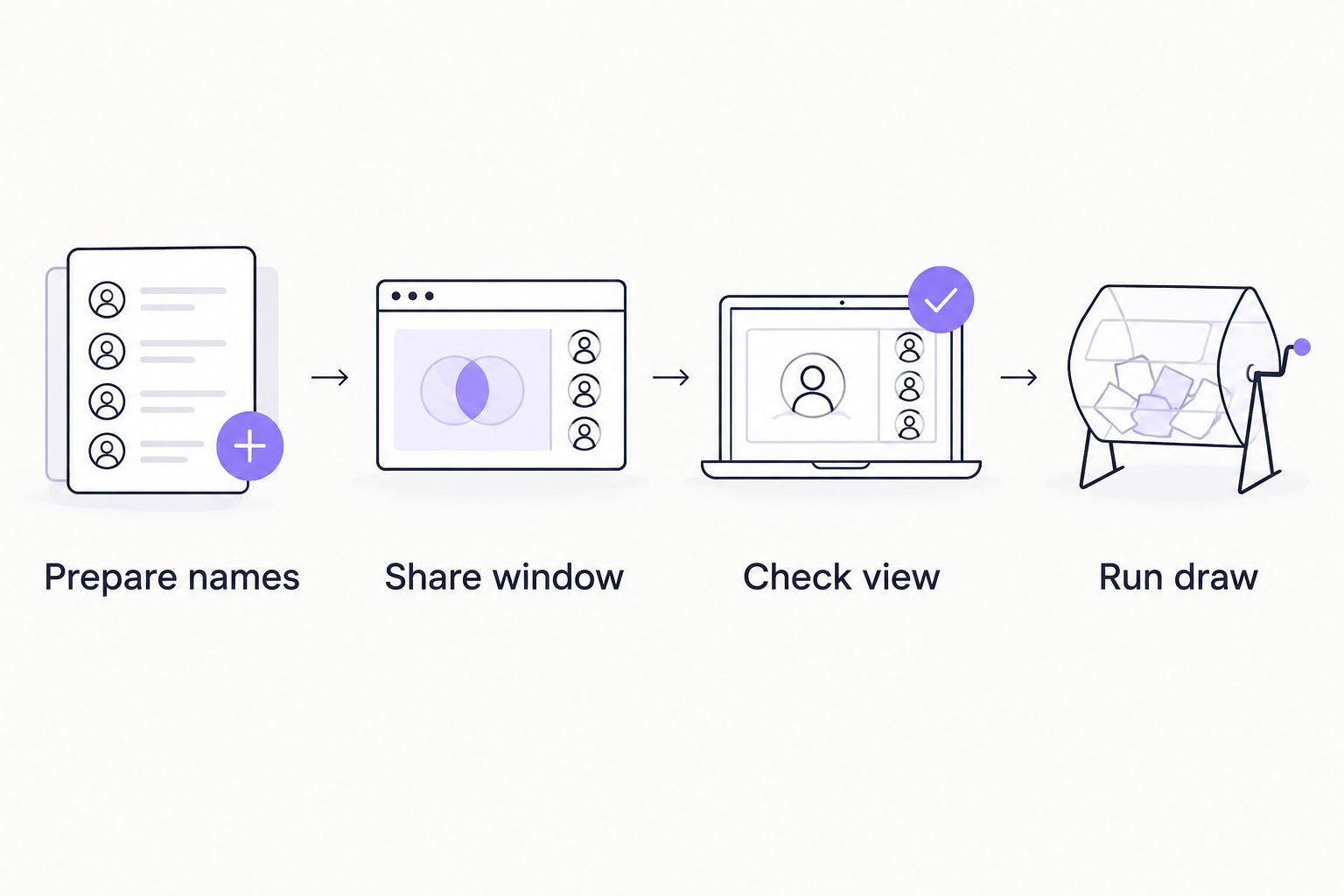
Window sharing is the recommended choice for this task because you need to show one browser window. Its limit is scope: participants will not automatically see instructions in a different application. Read the prompt aloud or intentionally change the shared source when the activity requires another document.
Live draw and result record
- Announce the purpose. Say what the selection means: the next reader, discussion starter, presenter, or quiz respondent. Avoid changing the consequence after a name appears.
- Confirm eligibility. Pause if someone has just joined or left. Update the entry list before the official draw rather than correcting the result afterward.
- Spin the wheel. Activate the wheel’s spin control. Let the displayed result finish before announcing the selected participant.
- Read the result aloud. Say the selected identifier and the task. Reading the result gives participants another way to follow the activity when the shared text is difficult to see.
- Apply the repeat rule. If the activity excludes previous selections, edit the list to remove the selected entry before the next spin. If repeats are allowed, leave the entry in place.
- Record the outcome. Note the round, selected identifier, and any pass or redraw in a separate teaching or meeting record. Finish with Stop Share when the wheel is no longer needed.
Expected result: everyone sees the same selection, and the next draw uses the eligibility rule you announced.
Do not redraw simply because you dislike the result. Redraw only for a reason covered by your rules, such as an ineligible entry discovered during the draw. State the reason aloud and record it.
A random name picker distributes selections according to its setup; it does not measure readiness, effort, or comprehension. Give the class thinking time before choosing a respondent. For sensitive discussion, allow a pass or choose volunteers instead of making random selection compulsory.
Repeat-round configuration
- Review the next round’s purpose. Decide whether the next selection is part of the same turn-taking activity or a new activity with a fresh eligible list.
- Reconcile list changes. Compare the wheel with current attendance and your result record. Remove departed participants and previous selections only where the announced rules require it.
- Check the updated wheel. Confirm that each intended identifier appears correctly. Do this before activating the next draw.
- Announce the next round. State any rule change before spinning. If you have restarted eligibility, make that reset explicit.
Expected result: repeat draws follow a documented rule rather than an improvised decision.
For your 2026 meeting template, write the rule next to the activity instructions: repeats allowed, or selected names removed. That short note is more useful than expecting another facilitator to infer the rule from the wheel’s current contents.
Draw a prompt whenever the activity changes
A second workflow uses the same screen-sharing setup but selects a task instead of a person. Replace the name list with classroom prompts, discussion topics, chores, or meeting icebreakers. Use a separate draw to determine who responds if that is also necessary.
| Workflow | Best for | Benefit | Limit |
|---|---|---|---|
| Name wheel | Choosing the next speaker or presenter | Makes the selected participant visible | Requires attendance and eligibility updates |
| Prompt wheel | Choosing a question, activity, or discussion topic | Keeps task selection separate from person selection | Does not decide who answers |
For a reading class, enter prompts such as summarize the passage, identify supporting evidence, and ask a question. For a team meeting, enter topics such as project update, blocker, and next action. These are example entries you prepare, not preset app features.
- Prepare a prompt list suited to the activity.
- Replace the entries in the wheel with those prompts.
- Check that no participant names remain from the previous activity.
- Share the wheel window and announce what the selected prompt requires.
- Spin, read the prompt aloud, and give participants time to respond.
Expected result: the wheel chooses the task without implying that it also chose a participant.
Keep the workflows separate when the consequences differ. A person who passes on answering a question should not automatically change which question the group discusses. Teachers planning broader activities can use the virtual and remote classroom wheel guide to extend this setup beyond speaker selection.
Troubleshooting
You cannot start screen sharing
Ask the host to enable participant screen sharing or have the host present the wheel. Meeting permissions control who can share. Changing names in the wheel does not resolve a Zoom permission restriction.
Participants see the wrong window
Select Stop Share, then start sharing again and choose the browser window containing the wheel. Ask someone to confirm the corrected view before resuming. Do not run an official draw while the audience sees your slides or another application.
Names are too small to read
Increase browser zoom and check that the result remains visible. Use shorter, agreed identifiers if long names make the wheel difficult to read. Read every result aloud; screen sharing alone does not guarantee that everyone can interpret small text.
An absent person or duplicate wins
Pause and compare the wheel with the eligible roster. Correct the entries, explain the mistake, and apply your announced redraw rule. Do not quietly remove an inconvenient result or describe an uncorrected list as fair.
Someone says they were selected already
Check your result record before spinning again. If your rule excludes previous selections, remove that entry manually from the wheel. If repeats are allowed, explain that the earlier selection did not remove eligibility.
Customize your workflow
Use Spinthewheelapp as a random picker wheel for one clearly defined decision at a time. Names answer who; prompts answer what; numbers select numbered tasks. Combining these decisions in one list makes the meaning of a result harder to explain.
For a substitute teacher, leave the eligible-name source, activity instructions, and repeat rule together. Include the screen-sharing sequence and your procedure for late arrivals. Do not leave private student notes in the browser window the substitute will share.
For a 2026 meeting handoff, assign one facilitator to maintain the wheel and another to track outcomes when that division suits your team. This is a workflow choice, not a requirement. In a small class, the teacher can handle both roles with a short pause between draws.
FAQ
How do I use a random name picker for Zoom?
Prepare the eligible names in a browser-based wheel and share that browser window in Zoom. Confirm that participants can read the result, announce the rules, and spin when you are ready for an official selection.
Is Spinthewheelapp a free random name picker?
Spinthewheelapp is a free web app with a customizable random picker wheel. You can use its name entries for a Zoom class by sharing the browser window containing the wheel.
Does screen sharing automatically add Zoom participants to the wheel?
Screen sharing does not add Zoom participants to the wheel. Maintain the entries yourself and compare them with attendance before each draw where eligibility has changed.
Can a student be selected more than once?
A student remains eligible for another selection if their entry stays in the wheel. For a no-repeat activity, remove the selected entry before the next draw and keep a separate outcome record.
What should I do when someone joins the Zoom class late?
Add the participant before the next draw if your activity rules make late arrivals eligible. Announce the list change before spinning so participants understand who is included.
Can I share the wheel without showing my whole desktop?
Yes, use Zoom’s window-sharing selection to share the browser window containing the wheel. Keep that window separate from private tabs and ask a participant to confirm what is visible.
Is a random name picker fair for classroom participation?
A random name picker needs a correct eligible list and consistent participation rules to support a fair classroom activity. Remove accidental duplicates, explain whether repeats are allowed, and provide an appropriate pass option; do not claim perfect randomness.
One last thing
A visible result is not the same as a correct eligible list. Your most useful final check is not another practice spin. Compare the entries with the people eligible to participate, then apply the same rule to every result.
For classroom questioning, choose the question before choosing the student. Give everyone thinking time, then draw the respondent. The wheel handles selection; you retain responsibility for the learning activity.