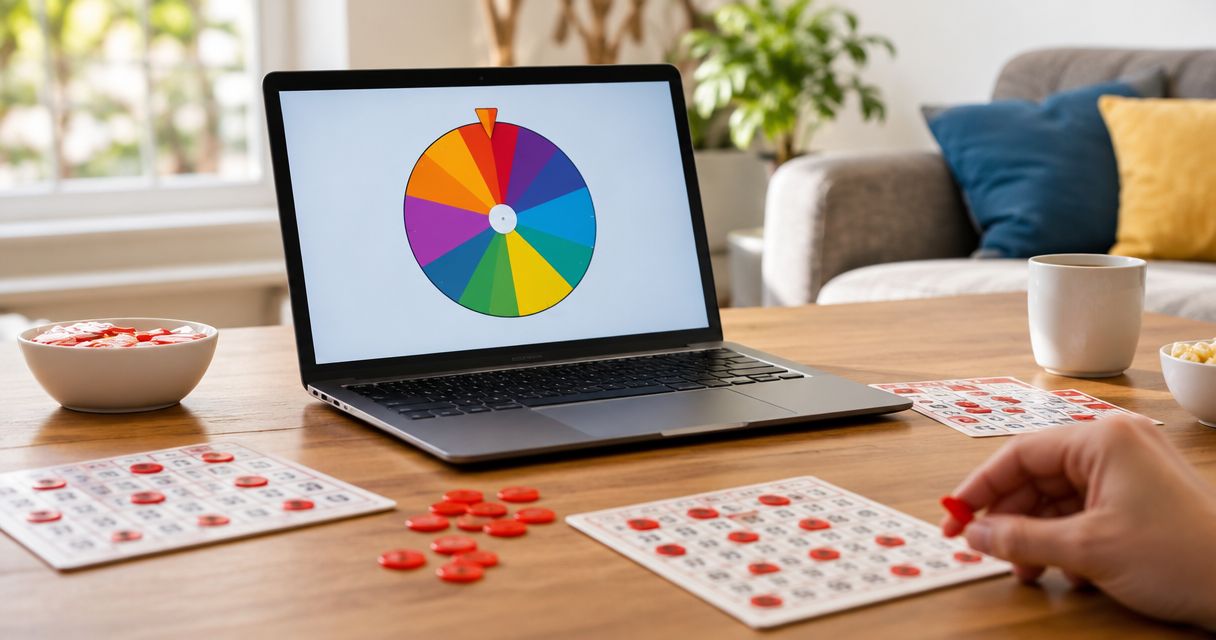
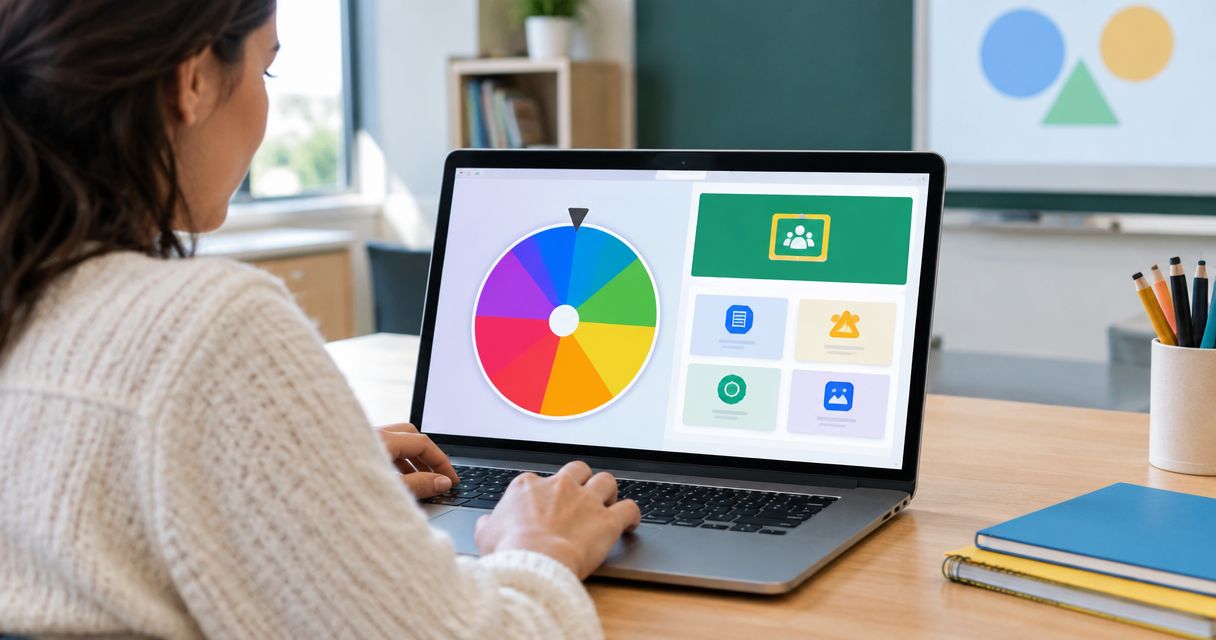
Instead of rebuilding a random-choice activity in every lesson, attach Spinthewheelapp to Google Classroom and keep the wheel entries and participation rules in the same post. This spin the wheel Google Classroom workflow uses a free, editable random picker wheel as an external activity; Classroom holds the instructions and student work.
- Use Spinthewheelapp for a free, editable random picker wheel linked from Google Classroom.
- Attach the wheel homepage; include the exact entries in your Classroom activity.
- Choose teacher-led spins for shared decisions or student-led spins for individual practice.
- Test student access before posting, and record results separately from the wheel.
Why this matters
A wheel chooses an entry. Google Classroom distributes the task and collects the response. Keeping those functions separate gives students a clear path from selection to work.
Spinthewheelapp is best for teachers who need a free, editable random picker wheel for classroom activities. Use it to choose discussion prompts, classroom jobs, practice questions, or group presentation order. The advantage is an editable selection activity. The limitation of this link-based workflow is that you handle the instructions, entry list, and result record separately.
For a 2026 lesson, treat the wheel as the selection step, not the assessment. A student still needs to know what to do with the selected entry. Write that requirement before adding the link.
Before you start
- Get teacher access to the correct Google Classroom class. You need permission to create a Classwork post. Students need access to that class and permission to open the external website under your school's rules.
- Prepare the entries and response instructions. Start with activity labels rather than student names. Decide whether one teacher spins for everyone or each student spins independently. Specify whether repeat selections count.
- Do not assume the homepage carries your prepared entries. Attaching the wheel homepage does not document the list you entered. Put the exact list in Classroom so a teacher, substitute, or student can recreate the activity without relying on your open browser session.
For classroom participation, use group labels or activity names wherever possible. Follow your school's policy before entering student information into an external tool. A name picker is not a reason to expose a class roster.
Wheel setup
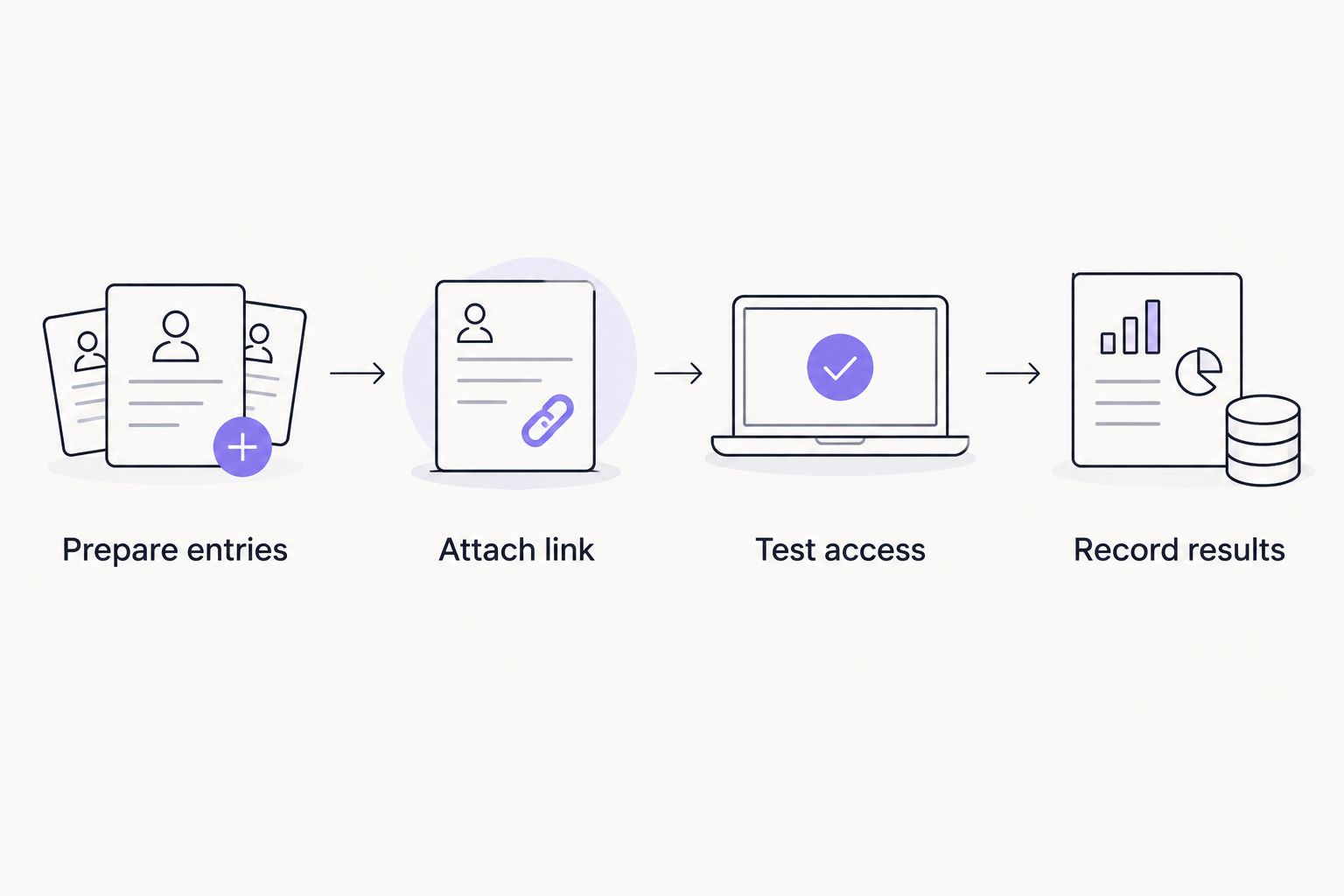
Prepare entries
- Open the wheel website in a separate browser tab.
- Use the editable entry area to replace the starting choices with your activity list. Enter one option per line where the entry editor accepts a line-separated list.
- Check every entry against the lesson instructions. Remove accidental duplicates unless repetition is intentional.
- Run a practice selection before class. Keep this test separate from the selections that count during the lesson.
Here is a classroom example with 6 prompts:
- Describe the setting.
- Identify the main conflict.
- Explain a character's choice.
- Find supporting evidence.
- Predict the next event.
- Summarize the passage.
These prompts give the selected entry a defined job. Avoid vague labels such as challenge or bonus unless the Classroom instructions explain them.
Use 1 pick per round for this example. A repeated prompt still counts unless you announce a different rule before the activity begins. If the lesson requires every prompt to appear, use a planned rotation rather than expecting random selections to cover the entire list.
Expected result: the wheel contains the intended prompts, and your written list matches what students will see. You have also separated a practice spin from the classroom activity.
Classroom attachment
Attach link
- Open Google Classroom and select the class.
- Select Classwork, then Create.
- Choose Assignment if students must submit a response. Choose Material if the post only provides instructions for a teacher-led activity.
- Enter a descriptive title, such as 2026 reading discussion: random prompt activity.
- In the instructions, paste the exact entries and explain who spins, how many selections count, and what students do afterward.
- Open the attachment controls and choose Link. Enter the wheel homepage linked above, then select Add link.
- Review the post. Select Assign for an assignment or Post for a material when you are ready to publish it.
Google Classroom can present attachment controls differently across devices. Use the web interface for this setup and choose the attachment type labeled Link. You are attaching an external page, not installing a Classroom add-on.
For the reading example, write: Open the wheel, enter the six prompts below, make one selection, and write a paragraph answering the selected prompt. Start your response with the prompt text.
Expected result: students see the activity instructions, the complete entry list, and a link that opens the wheel website. They do not need to infer the rules from the spinner alone.
Access check
Test access
- Open the posted activity through a permitted student account or ask a student to test it under your school's procedures.
- Open the wheel attachment on a school-managed device.
- Check that the website loads and that the student can enter the supplied prompts.
- Compare the visible entries with the Classroom list.
- Confirm that the student can return to Classroom and find the response instructions.
Test the whole task, not just the link. A page opening on your teacher laptop does not establish that it opens on a student Chromebook or through the school network.
For a 2026 classroom setup, repeat this check when the device or school access policy changes. Do not wait until the lesson starts to discover that external websites are blocked.
The homepage attachment also needs a content check. A student who opens the site successfully but sees unrelated starting choices still needs to replace those choices with the assigned entries. Put that action explicitly in the instructions.
Expected result: a student can open the website, recreate the intended list, make a selection, and return to the task. If any part fails, switch to a teacher-led activity before distributing individual work.
Result record
Record results
- Tell students when a selection counts. For example, the first selection after the complete list is entered counts.
- Ask students to copy the selected prompt into their response before answering it.
- For a teacher-led lesson, write the selected prompt where the class can see it.
- Complete the activity and collect the work through your normal Classroom submission process.
- Keep the selection rule beside the result record so the activity can be explained later.
Run 3 rounds if your lesson needs several short responses. In that example, students record a prompt and an answer for each round. Three rounds describe the lesson format; they do not guarantee three different selections.
Random selection alone does not document what happened. The record should distinguish the chosen entry from the student's answer. That makes the task readable even after the browser tab closes.
Expected result: Classroom contains evidence of the selected task and the student's work. This workflow does not transfer wheel results into Classroom automatically; you record them as part of the activity.
The process stays simple when you keep its responsibilities separate: prepare entries, attach the link, test access, and record results.
Teacher-led or student-led spins
Choose the workflow based on who needs to make the selection. Neither approach removes the need for written rules.
| Workflow | Best for | Advantage | Limitation |
|---|---|---|---|
| Teacher-led wheel | Shared prompts, discussion order, classroom jobs | Everyone sees the same selection and follows one entry list | Students depend on the teacher to run each selection |
| Student-led wheel | Independent practice and homework choices | Students make selections while completing their own work | Students must recreate the list and follow the selection rule independently |
Teacher-led activity
Post the entry list as a Classroom material. Open the prepared wheel on the classroom display and announce the selection rule before spinning. Record the chosen entry in the activity notes or on the board.
This is the more direct choice when the whole class answers the same question. It also avoids asking every student to edit a separate wheel. The trade-off is that independent students cannot continue selecting tasks without the teacher.
Student-led activity
Post an assignment with the wheel attachment, exact entries, and response format. Ask students to identify their selected prompt in their submitted work. Explain what to do if an entry repeats.
Use teacher-led spins when a shared, observable selection matters. Use student-led spins when individual practice matters more than a shared draw. Do not treat an unsupervised homework spin as proof that a student followed a selection rule.
Update the activity for another lesson
You can reuse the Classroom structure when the topic changes. In Classwork, select Create, then Reuse post, and choose the previous activity. Review its contents before publishing the new version.
Replace the entry list, lesson directions, and response requirement. Check assignment settings and any attached documents as well. For a new 2026 lesson, make the title identify the actual topic rather than leaving an old activity name in place.
Update the wheel entries separately. Editing the Classroom post does not change a wheel already open in another browser tab. Tell students which list belongs to the current task.
For example, replace reading prompts with classroom jobs such as materials helper, board helper, or discussion starter. Keep names out of the list if choosing a job is enough. The output is a job label; the teacher still decides how that job is assigned within classroom rules.
Expected result: the reused post describes the current lesson, and the wheel matches that post. Reusing instructions saves rewriting without assuming synchronization between the two websites.
Troubleshooting
- The wheel will not open on student devices. Check the school's external-site restrictions with the appropriate administrator. Do not ask students to bypass a filter. Use a teacher-led demonstration only if school policy permits access on the teacher's device.
- Students see the wrong entries. Have students compare the wheel against the list in Classroom and replace the starting choices. The homepage attachment is an entry point, not evidence that your prepared list traveled with it.
- A prompt appears more than once. Random selections can repeat. State whether repeats count before the activity; if every task must appear once, use a rotation or explicitly track and exclude completed tasks.
- The instructions changed, but the wheel did not. Update the wheel's entries separately and check the full list. Classroom edits and wheel edits are separate actions in this workflow.
- A student spins repeatedly to get a preferred task. Use a teacher-observed selection when compliance matters. For independent practice, assess the response rather than claiming the selection itself is verified.
Customize your workflow
Keep the same structure and change what the entries represent. A number wheel can select a question from a worksheet. A food-choice wheel can support a discussion about meal planning. A yes/no wheel can start a debate, but it should not decide whether an answer is correct.
For classroom tournaments, publish the pairing or turn-order rules separately. A wheel selection does not resolve every scheduling constraint. For chores, describe what each chore involves before selecting it.
If your 2026 lesson already uses presentation slides, the guide to embedding a spin the wheel picker into Google Slides covers that adjacent setup. Treat slide presentation and Classroom distribution as separate tasks, and test the presentation before teaching.
Keep a substitute-ready version in Classroom. Include the entries, the selection rule, the response requirement, and the fallback activity. A substitute should not need access to your browser session to understand the lesson.
FAQ
How do I connect a spin the wheel picker to Google Classroom?
Attach the wheel website as a link in a Google Classroom assignment or material. Include the exact entries, the selection rule, and the required response so students can complete the activity.
Can I embed a working wheel directly inside a Classroom assignment?
Use a link attachment for this workflow, not an HTML embed. Students open the wheel website separately and return to Classroom for instructions and their response.
Do wheel entries automatically sync with my Google Classroom roster?
This link-based workflow does not sync roster data or wheel entries. Prepare the entries separately and use activity labels or group labels when student names are unnecessary.
Is Spinthewheelapp free for classroom random picker activities?
Spinthewheelapp is a free web app with a customizable random picker wheel. Follow your school's external-tool policy before using it with students.
Should I create an assignment or a material for a wheel activity?
Create an assignment when students need to submit work, and a material when you only need to distribute instructions. A teacher-led discussion can use a material with the prompts and participation rules.
How do I stop the same prompt from being selected again?
Track completed prompts and exclude them from later selections when the activity requires no repeats. Do not assume repeated random selections will produce a different prompt each time.
What's the best way to record wheel results in Google Classroom?
Ask students to copy the selected entry into their response before completing the task. For teacher-led activities, record the selection in the lesson notes or another shared classroom record.
One last thing
Random selection and equal participation are different goals. A wheel can select the same eligible entry again while another entry remains unselected. If everyone must participate, keep a participation record and adjust the eligible list according to rules announced before the activity.
The useful connection is not just the attachment. It is the complete task: a documented list, a clear selection rule, and a response that makes the result meaningful.