

Instead of retyping your roster before every activity, copy a cleaned Google Sheets column into the editable name list in Spinthewheelapp and check the entries before spinning. This 2026 workflow shows how to import Google Sheets names into a picker wheel through a manual transfer, then repeat that transfer when your roster changes.
- To import Google Sheets names into picker wheel entries, copy one cleaned name column and verify the pasted list.
- Spinthewheelapp is a free random picker wheel for teachers, event organizers, and streamers who need editable selections.
- Exclude headings, blank cells, and ineligible participants before transferring your Google Sheets roster.
- Treat each transfer as a snapshot; repeat the transfer when the source roster changes.
Why this matters
A wheel selects from the entries you give it. It does not decide whether a student is absent, whether two identical names belong to different people, or whether a giveaway entrant qualifies.
Clean the roster before you transfer it. That keeps eligibility decisions separate from the random selection and gives you a list you can inspect before an activity begins.
For a classroom activity, decide whether everyone participates or only students present today. For a raffle, decide what counts as an eligible entry. Write that rule beside the source list, not after a result appears.
Spinthewheelapp is a free random picker wheel for teachers, event organizers, and streamers who need editable selections. The spreadsheet-to-wheel process below is a manual workflow, not an account connection or an automatic synchronization setup.
Before you start
- Open the source spreadsheet and the wheel. You need permission to view and copy the names. Editing access is required for the cleanup and checkbox variant below; otherwise, ask the sheet owner to prepare a clean column.
- Prepare one name column and an eligibility rule. Keep emails, attendance notes, and other private information outside the copied range. Use only the identifying detail necessary for the activity.
- Check identical names before removing duplicates. Two rows with the same name can represent two different students. Add a suitable distinguishing label rather than deleting a legitimate participant.
Keep both browser tabs open during setup. If you project the activity, show the wheel rather than the full spreadsheet, especially when the sheet contains information unrelated to the draw.
Choose your transfer method
Use a whole-roster transfer when everyone on the list is eligible. Use an eligibility-filtered transfer when participation changes by lesson, event, or session.
| Workflow | Best for | Advantage | Limitation |
|---|---|---|---|
| Whole-roster transfer | A classroom group with unchanged participation | Gives you a direct, inspectable list to copy | Includes absent or ineligible people unless you remove them first |
| Eligibility-filtered transfer | Attendance-based classroom activities or qualified entrants | Keeps the source roster while producing a separate eligible list | Requires accurate eligibility marks and a fresh transfer |
Both workflows use the same final check: compare the names in the wheel with the prepared spreadsheet list. Neither makes this manual transfer update itself.
The following 2026 setup starts with the whole-roster method. The second variant adds checkboxes and a formula for changing participation.
Prepare your roster
Clean name column
- Put the names in a single column. Keep a heading such as Participant in the first row, but leave that heading out of the range you copy.
- Remove entries that do not qualify for this activity. For a classroom demonstration, a roster containing 12 participant rows and 1 header row should contribute 12 entries, not 13.
- Select the name cells. In Google Sheets, use Data, then Data cleanup, then Trim whitespace to remove unnecessary spaces.
- Review repeated names. Use Data, Data cleanup, and Remove duplicates only after confirming that repeated rows are accidental rather than separate people or permitted multiple entries.
- Read the cleaned column from top to bottom. Check spelling, distinguishing labels, blank cells, and any leftover headings.
Expected result: one column containing only eligible display names, with each intended entry occupying its own row.
Do not clean a shared master roster in place if other people depend on its original contents. Prepare a separate working column or sheet instead. That preserves attendance records and other source information while giving you a purpose-built draw list.
For a 2026 classroom roster, a useful display label can be a first name plus a distinguishing initial. Follow your school's rules for displaying student information; a wheel is not a reason to publish the full roster.
Transfer range
- Select only the populated name cells. Start below the heading and stop at the last intended participant.
- Copy the selection with Ctrl+C on Windows or Command+C on Mac.
- Inspect the copied text in a temporary plain-text document if you are unsure about its structure. Each name should appear on its own line.
- Return to the spreadsheet and correct the range if the copy includes extra columns, headings, or notes. Copy the corrected range again.
Expected result: a clipboard selection containing names only, separated by line breaks.
Copying adjacent columns can introduce tab-separated material into the transfer. A name followed by an email address or attendance note is not the display entry you intended. Fix the source selection rather than trying to repair an entire messy list inside the wheel.
Configure your wheel entries
Entry replacement
- Open the editable entry list in Spinthewheelapp. Identify the existing options before changing them.
- Remove the previous activity's entries from that list. Replace them rather than adding the new roster beneath them.
- Paste the copied names using Ctrl+V or Command+V. Keep one intended entry per line.
- Inspect how the editor has interpreted the pasted text. If it appears as one combined entry, separate the names into individual entries before proceeding.
- Compare the beginning and end of the wheel list with the source column. Check the full list as well; matching endpoints does not establish that every middle row transferred correctly.
Expected result: the wheel contains the prepared roster, without old entries, spreadsheet headings, or unrelated fields.
Do not assume that a successful paste means a correct import. The important test is whether the editable list contains the intended separate entries. For the 12-participant example, verify 12 entries and check every name.
Draw verification
- Read the wheel entries before running the activity. Confirm that each participant appears the intended number of times.
- Explain the selection rule. State whether a selected participant remains eligible for another turn or is removed from later draws.
- Make a practice selection before the official activity. Check that the result identifies an entry from the prepared list.
- Restore the intended starting roster if the practice run changed it. Keep the practice result separate from the official results.
- Record the official result in your activity log when documentation matters.
Expected result: you have an inspected roster and a stated repeat-selection rule before the official draw begins.
For this 2026 workflow, the verification sequence is: Prepare roster, Copy names, Replace entries, Check roster, Record result. The sequence separates list preparation from the selection itself.
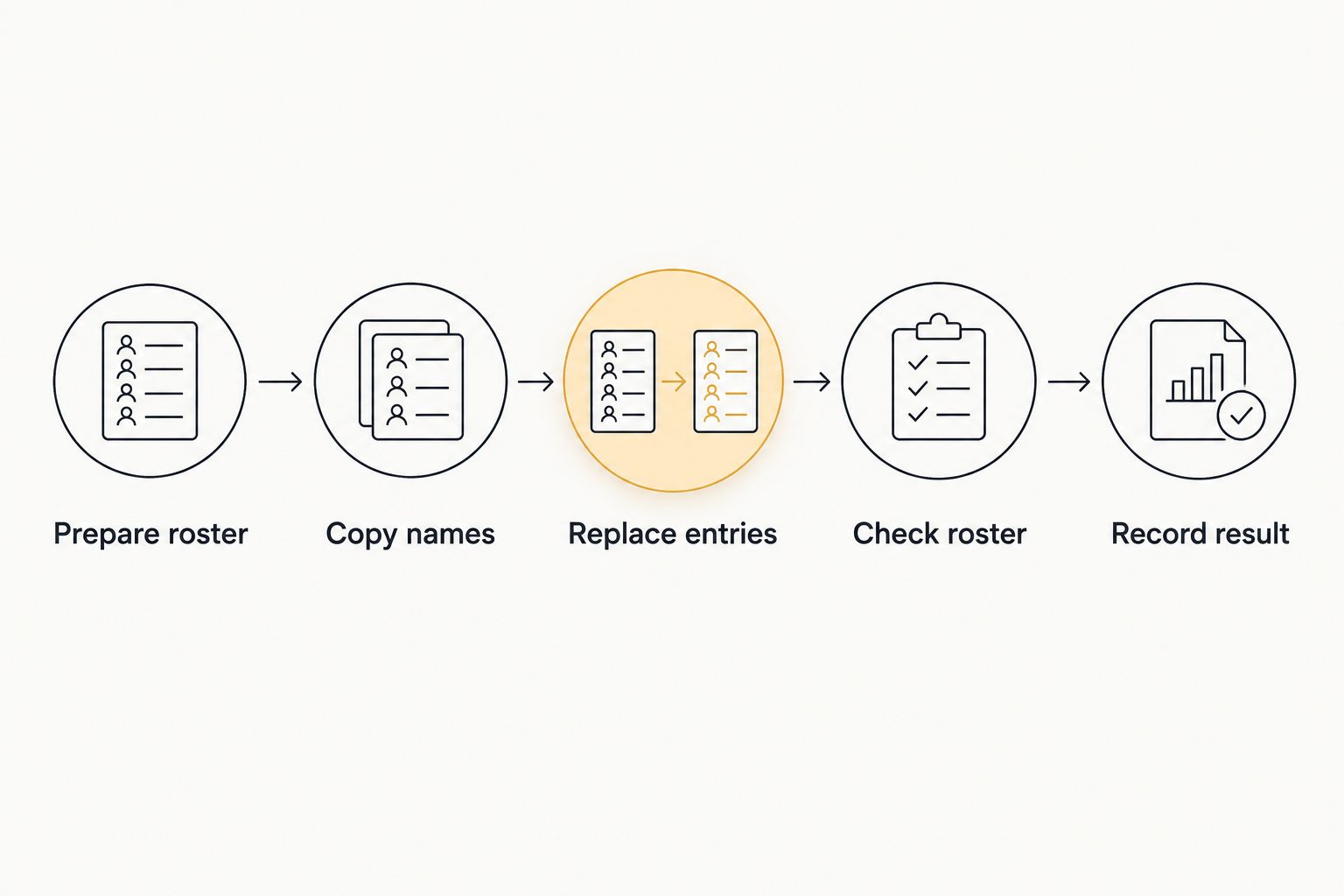
A practice spin checks the workflow, not the mathematical quality of randomness. Do not describe a few observed results as proof of perfect randomness or equal selection probabilities.
Refresh the wheel whenever eligibility changes
For changing attendance, keep the full roster and create a separate eligible-name column. This avoids deleting absent students from the master list and rebuilding it for the next lesson.
Checkbox-filtered roster
- Put participant names in column A, beginning at A2. Use the first row for headings.
- Select the corresponding cells in column B and choose Insert, then Checkbox. Mark the participants eligible for the current activity.
- In an empty column, enter
=FILTER(A2:A,B2:B=TRUE,A2:A<>""). The formula returns nonblank names whose corresponding checkbox is checked. - Review the returned list. Confirm that the checked participants and displayed names match.
- Copy only the populated formula results. Replace the wheel's previous entries, then repeat the roster verification.
Expected result: the wheel contains a snapshot of the participants marked eligible at the time of copying.
For example, check 3 participant rows in the eligibility column. The result should contain those 3 names; use that small example to verify the formula before marking the rest of your roster.
Google Sheets formula separators depend on spreadsheet locale. If commas cause a formula parsing error, check whether the sheet requires semicolons. Keep the ranges aligned so each checkbox controls the name on the same row.
Refresh the wheel after every eligibility change. Updating a checkbox changes the formula output, but this manual workflow still requires a new copy-and-paste transfer.
Troubleshooting
The roster appears as one combined entry
Inspect the editable list before spinning. If the names are combined, separate them into individual entries rather than leaving a single long label.
Check the source copy in plain text. Copy one spreadsheet column, preserve the line breaks, and avoid copying a sentence containing comma-separated names.
Old names remain after the transfer
Replace the entire previous roster rather than pasting beneath it. Then compare the wheel's entries against the current source list.
Watch for similar-looking names from different sessions. A correct entry count does not prove that the correct people are included.
A participant appears more than once
Check whether the repetition is deliberate. Multiple permitted raffle entries and duplicate classroom roster rows require different treatment.
If each person should have one entry, correct accidental duplicates in the source and transfer again. If two people share a name, give each a distinguishing display label.
The eligibility formula returns an error
Check that columns A and B use matching row ranges and that the eligibility cells contain actual checkboxes. A text note such as present is not the Boolean value TRUE used by the formula.
If no participants are checked, FILTER has no matching rows and returns a no-match error. Mark eligible participants before copying; do not transfer the error text as an entry.
The wheel contains yesterday's roster
Check the current spreadsheet list against the wheel before the next activity. A prior paste remains a prior snapshot in this workflow.
Add a preparation note to your activity plan: refresh roster, inspect entries, explain repeat rules. Use that routine for every session rather than relying on memory.
Customize your workflow
Use the same preparation process for chores, food choices, classroom prompts, or tournament participants. Change the source column and eligibility rule; keep the copy, replacement, and verification steps.
For a classroom selection, maintain a separate record of who has already taken a turn. If your rule excludes previous selections, update eligibility before the next transfer. Do not confuse selection with assignment: drawing a name does not automatically create a complete seating plan or balanced teams.
For presentations, prepare the roster before arranging the display. The guide to embedding a spin-the-wheel picker into Google Slides covers the adjacent presentation workflow.
Spinthewheelapp offers customizable random picker wheels, but this guide does not depend on a Google account connection, a file importer, or an automatic refresh feature. Its advantage is an inspectable transfer; its limitation is the need to repeat that transfer when the source changes.
FAQ
How do I import Google Sheets names into a picker wheel?
Copy a cleaned column of eligible names, replace the wheel's existing entries, and verify that each name becomes a separate entry. Leave out the heading, blank cells, and unrelated columns.
Does this workflow automatically sync Google Sheets with the wheel?
No, this workflow is a manual copy-and-paste transfer. When the spreadsheet changes, copy the revised list and replace the wheel entries again.
Can I copy several columns from Google Sheets?
Copy only the display-name column for this workflow. Adjacent columns can add emails, attendance notes, or other material that does not belong in the wheel.
Should I remove duplicate names before importing?
Remove only unintended duplicate entries. Two different participants can share a name, and some raffle rules permit multiple entries, so establish the entry rule first.
How do I include only students who are present?
Use an eligibility checkbox column and a FILTER formula to create a list of checked participants. Copy that result into the wheel and verify it before the classroom activity.
What should I check before the first official spin?
Check every entry against the prepared source list and explain whether selected names remain eligible. Keep any practice selection separate from official results.
Is this Google Sheets transfer method suitable for a giveaway?
Use it when you can prepare and inspect the eligible-entry list before the draw. Document eligibility, permitted repeat entries, the transferred roster, and the official result.
One last thing
Freeze eligibility before the official draw. Keep a dated copy of the exact roster used for your 2026 activity, along with the repeat-selection rule and result. An editable spreadsheet can change later; the recorded draw list explains who was eligible when you selected a name.