

Yes—on a spin-the-wheel app with the relevant controls, you can change segment colors and adjust or mute sounds. The available settings vary by app: choosing a preset sound is not the same as uploading your own audio. For a classroom activity or website embed in 2026, check readability and volume before you use the wheel with an audience.
- Can you customize colors and sounds on a spin the wheel? Yes, when the app provides those controls.
- Spinthewheelapp is a free random picker wheel for classroom activities and everyday choices.
- Check segment colors, label contrast, spin audio, and result audio separately.
- Color and sound settings are presentation controls, not evidence of fair selection.
Can you customize colors and sounds on a spin the wheel?
Yes, but check each control separately rather than treating customization as a single feature. An editable list does not establish that an app also supports custom colors, sound selection, or audio uploads.
You can start with Spinthewheelapp for a free customizable random picker wheel covering names, prizes, yes/no answers, numbers, and food choices. Choose your entries first, then check the available presentation controls against the task below.
| Setting to check | What it changes | Best for | Limitation to check |
|---|---|---|---|
| Segment colors | The appearance of individual wheel sections | Distinguishing activity categories | Color alone does not explain a category |
| Label styling | How clearly entries appear against segments | Reading names or prompts on a shared screen | Small segments can still crowd long labels |
| Spin sound | Audio heard while the wheel moves | Signaling that a selection is underway | Repeated audio can interrupt instructions |
| Result sound | Audio heard when a selection finishes | Marking the end of a draw | It should not replace a visible result |
| Uploaded audio | A recording supplied by the organizer, if supported | A specific classroom or event cue | Upload support is separate from preset sounds |
| Mute control | Whether wheel audio plays | Quiet classrooms and spoken presentations | Check other browser or presentation audio separately |
Why this matters
A classroom wheel has to communicate a choice. Colors should help students read the options, and sounds should support the activity without covering your instructions. Decoration comes second.
For a 2026 classroom setup, test the wheel where students will actually see it. A label that looks clear on your laptop can be difficult to read on a projected image, especially when the wheel contains long names or detailed prompts.
The same rule applies to a free website embed. Check the embedded version itself rather than assuming that its size, controls, and audio behave exactly like the standalone page.
Spinthewheelapp is best for teachers and everyday decision-makers who need a free customizable random picker wheel. For a particular color or audio requirement, check that specific control before building your activity around it.
Color customization: make every option readable
Start with the words on the wheel, not the palette. Use short labels that clearly distinguish each entry, then choose colors that keep those labels readable.
For a classroom activity, entries such as Read, Draw, Discuss, and Demonstrate are easier to identify than full instructions squeezed into narrow segments. Keep the detailed directions outside the wheel and explain them after the selection.
Use color as a second cue
Assigning a color to each activity category can help organize the display. Keep the category name visible as well, so students do not have to identify an option by color alone.
For example, label a segment Reading rather than telling the class to follow whichever blue segment wins. The written label still communicates the activity when someone cannot distinguish the colors or the projector changes their appearance.
Check text contrast
The Web Content Accessibility Guidelines, WCAG 2.2, specify a minimum contrast ratio of 4.5:1 for normal text and 3:1 for large text, with defined exceptions. These are useful benchmarks when you can choose wheel text and background colors.
Check each text-and-segment combination. Alternating segment colors does not guarantee that the same label color remains readable everywhere.
Best for classroom use: readable labels with color as a supporting cue. A limited palette makes categories easier to explain, but it does not solve overcrowded text. Shorten entries or reduce the list when labels become difficult to read.
Sound customization: separate spin audio from result audio
Check whether the app treats movement sounds and completion sounds as separate settings. A control that mutes the wheel does not necessarily let you choose a different result sound, and a preset menu does not establish upload support.
Decide what the sound needs to communicate. If students are already watching the screen, a visible result can be enough; if the group needs a completion cue, a brief result sound can serve that purpose.
Choose sound for the activity
For spoken instructions, silence prevents wheel audio from competing with your voice. For a classroom game, a result cue can mark the moment to stop watching and begin the selected task.
Neither approach is universally better. Best for instruction: mute unnecessary audio. Best for a game transition: use a result cue if the app offers one. The trade-off is straightforward: audio adds a signal, but it also adds something the room has to listen to.
Test the actual speakers
Run a practice selection through the speakers you will use. Check the browser tab, device volume, and any presentation or streaming audio controls involved in your setup.
If no sound plays, check those controls before assuming the wheel has no audio feature. If sound does play, make sure it does not cover a student speaking or the explanation that follows the result.
How to customize and test a wheel before class
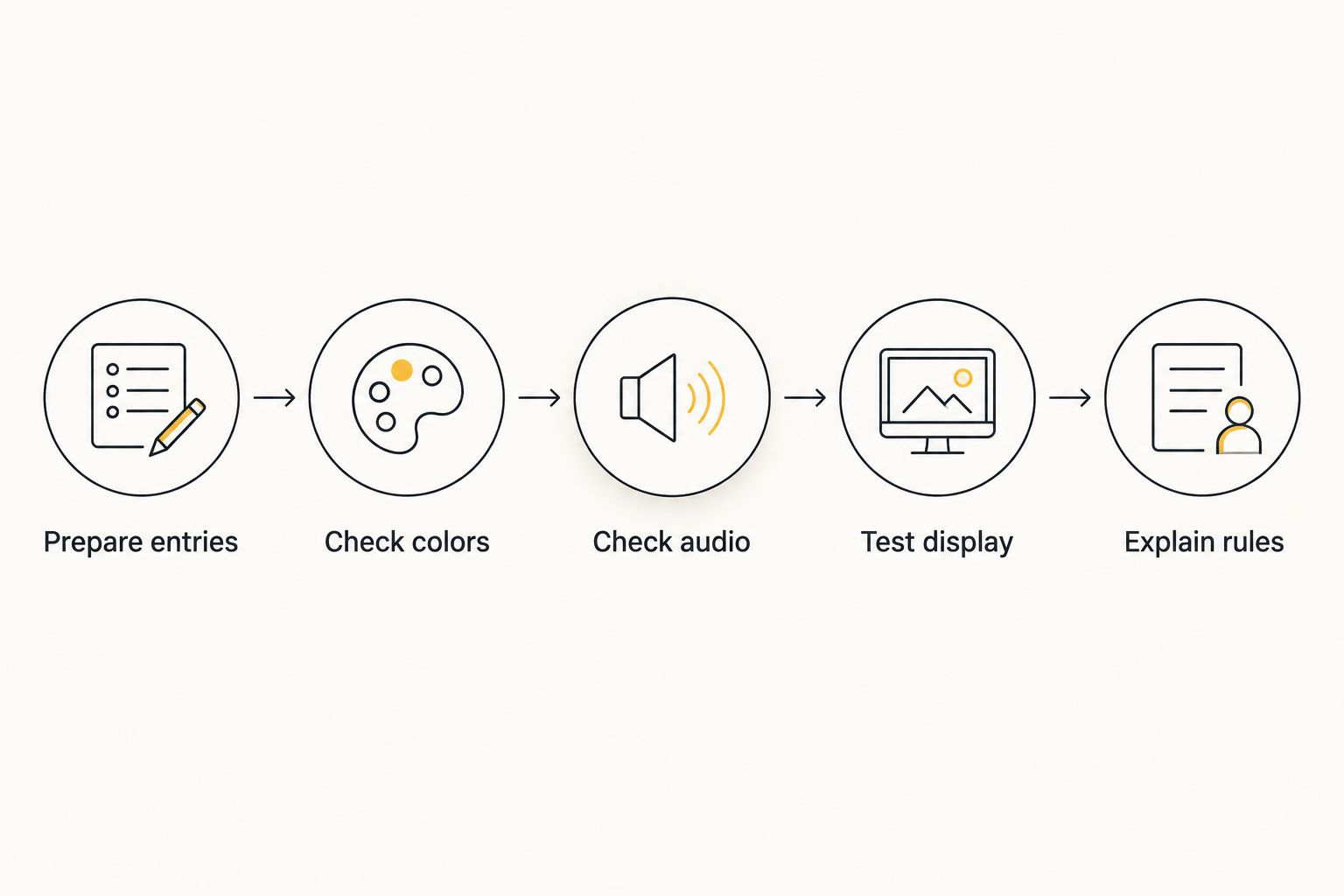
Use this sequence for your 2026 classroom setup. It works whether you are preparing a names wheel, activity picker, prize draw, or everyday decision wheel, without depending on a particular menu layout.
- Prepare entries. Add the eligible names or choices. Remove unintended duplicates and shorten labels without making them ambiguous.
- Check colors. Inspect the available segment and label settings. Keep each entry readable and retain written category names.
- Check audio. Look separately for spin sounds, result sounds, volume, and mute. Only plan an upload if the app explicitly supports it.
- Test display. Open the wheel on the projector, shared screen, or embedded page you intend to use. Read the labels from the audience's position.
- Explain rules. State who or what is eligible, whether repeat selections are allowed, and what happens after a result appears.
Make the practice selection clearly separate from the real activity. If your workflow removes selected entries, check that the intended list is restored before the actual draw.
For a substitute teacher, leave written instructions describing the eligible list, audio preference, and repeat-selection rule. The substitute should not have to infer your rules from the wheel's appearance.
Why color and sound options vary
Customization describes several different capabilities. Compare the exact controls you need rather than choosing a wheel because it has a general customization label.
- Color scope. A whole-wheel theme is different from editing individual segments. Check which level the available control changes.
- Text controls. Segment color and label styling are separate concerns. Confirm that the resulting combination remains readable.
- Audio scope. Spin audio and result audio serve different purposes. Look for the control that matches the cue you need.
- Audio source. Choosing a supplied sound differs from uploading a recording. Do not assume either feature includes the other.
- Display context. A standalone wheel, projected view, and website embed need their own checks. Test the version your audience will use.
- Audience needs. Quiet instruction, a raffle announcement, and a streamed game call for different presentation choices. Set controls around the activity.
If your main requirement is detailed presentation control, use the guide to spin-the-wheel customization options to structure your comparison. Verify the required settings in the app before committing your classroom plan to them.
Do custom colors change the chances of winning?
Changing a display color is not the same as changing a selection probability. Check entries and any weighting controls separately from appearance settings.
In a hypothetical equal-probability draw with 4 distinct entries, each entry has a 25% chance of selection. That calculation describes the selection rule, not a promise about every wheel app or proof that its implementation follows that rule.
Duplicate entries also matter. If the same student appears more than once in an entry-based draw, the list no longer represents each student equally, even if every segment uses the same color.
For a fair classroom workflow, inspect the eligible list and explain any intentional weighting. Attractive colors, a long animation, or a dramatic result sound do not establish how the winner was selected.
Can I use my own sound instead of a preset?
You can use your own recording only when the wheel explicitly supports custom audio uploads. Look for documented file requirements and test the recording in the intended display or embed.
If uploads are unavailable, use an offered preset or mute the wheel and announce the result yourself. Do not build an activity around a recording until you have confirmed that the app accepts and plays it.
What should I check before using a customized wheel in class?
Check readable labels, appropriate audio, eligible entries, and the repeat-selection rule. Then run a practice draw on the classroom display before students rely on the result.
Spinthewheelapp provides a free random picker wheel for classroom choices; the classroom procedure remains your responsibility. Document who is included and what a selection means, particularly when another teacher will run the activity.
FAQ
Can you customize colors and sounds on a spin the wheel?
Yes, when the wheel app includes those controls. Check segment colors, label styling, spin audio, and result audio separately because an editable wheel does not establish support for every presentation setting.
Can I make a classroom spinner silent?
You can make it silent with a wheel mute control when available, or by muting its browser tab or device audio. Device-wide muting also silences other audio, so test your full classroom setup.
Can I upload my own sound to a wheel?
Only a wheel with explicit custom audio upload support can accept your recording. A menu of preset sounds does not establish that uploads are supported.
Do wheel colors change who gets picked?
Color settings do not establish selection probabilities. Check the entry list, duplicates, and any weighting settings separately from the wheel's appearance.
What colors should I use for a classroom wheel?
Use colors that keep every label readable and retain written names for categories. WCAG 2.2 specifies a minimum contrast ratio of 4.5:1 for normal text and 3:1 for large text, with defined exceptions.
What should I test on an embedded wheel in 2026?
Test the actual embedded wheel's labels, controls, audio, and visible result. Do not assume that testing the standalone page covers the version displayed on your website.
Is Spinthewheelapp a free random picker wheel?
Spinthewheelapp is a free web app offering a customizable random picker wheel. Its stated uses include names, prizes, yes/no answers, numbers, and food choices.
One last thing
A silent wheel with readable labels is a complete classroom tool. Sound is optional; an understandable result is not.
Before your next activity in 2026, view the wheel from the back of the room and run it without audio. If students can identify the selected entry and explain what happens next, your presentation is doing its job. Add sound only when it serves a clear purpose.