

Instead of opening a separate picker for every classroom activity, embed a decision wheel widget on your website using supported embed code, then test the published page before sharing it. Start with Spinthewheelapp for editable names, numbers, prizes, yes/no answers, or food choices; use a normal link if the wheel cannot load inside your page.
- To embed decision wheel widget on website pages, use supported embed code and verify public access before publishing.
- Spinthewheelapp is a free random picker wheel for teachers, event organizers, and streamers who need customizable choices.
- An iframe needs permission from both the wheel provider and your website editor.
- Test your classroom spinner on the published page, not just inside the editor.
Why this matters
An embedded wheel keeps the activity and its instructions on the same page. A teacher can place discussion prompts above the picker and participation rules below it. Visitors do not have to switch tabs to understand the task.
Embedding also introduces a dependency: your website must accept the embed, and the wheel provider must allow its page to appear inside another website. A working browser link does not prove that the same address will work in an iframe.
For a 2026 classroom activity, treat the wheel as one part of the lesson. Keep the instructions readable even when the embedded content fails to load. The page should still explain what participants are choosing and how the result will be used.
Before you start
- Website access: You need permission to edit and publish the destination page, plus an editor that accepts the provider's supported embed format. A text-only editor is not enough.
- Wheel materials: Prepare the options, the selection rules, and any supported embed code provided by the wheel service. Use access required to edit the wheel, without assuming visitors need that same access.
- Embedding permission: Check whether the wheel page allows framing. Browser headers such as
Content-Security-PolicyandX-Frame-Optionscan block an iframe even when the wheel works normally in its own tab.
Do not publish student names, private contact details, or confidential participant lists on a public page. For a classroom demonstration, use activity names, group labels, or non-identifying sample entries.
Wheel configuration
Prepare the choices
- Open the random picker and enter the options you want participants to see. Use one option per entry, and follow the input format shown by the tool.
- Remove accidental duplicates. If repetition is intentional, document why the same option appears more than once.
- Set the participation rules before the first draw. Decide whether a selected option stays eligible and whether visitors draw independently or watch a shared demonstration.
- Run a practice selection using non-identifying entries. Check that the displayed choices match the activity.
Expected result: The wheel contains the intended options, and the page author can explain what happens after each selection.
Spinthewheelapp is a free random picker wheel for teachers, event organizers, and streamers who need customizable choices. Its supplied description supports that use; embedding still requires supported code and a successful page test.
Record the selection rules
A wheel chooses among the entries you supply. It does not decide whether those entries are eligible, whether duplicates are intentional, or whether a selected participant should remain in later draws.
For your 2026 classroom page, write the rule beside the wheel: select a discussion topic, assign a chore, or choose a group to present. Avoid claiming perfect randomness. A visible selection is useful, but the animation alone is not evidence of a particular randomization method.
Embed configuration
Choose the display method
- Look for documented embedding instructions from the wheel provider. Use the supplied code when an embedding method is offered.
- Identify what the code requires: an iframe, a script, or another supported integration. Match that requirement to what your website editor permits.
- Do not turn a normal wheel URL into invented embed code and assume it preserves your choices. A root homepage address is not evidence of a saved, configured wheel.
- If no supported embed method is available, place a normal link beside the activity instructions instead.
Expected result: You have either a supported embed to install or a working linked workflow. You have not promised an embedded experience before verifying it.
| Method | Best for | Advantage | Limitation |
|---|---|---|---|
| Supported iframe embed | An activity that needs the wheel inside the page | Keeps the picker beside the instructions | The provider must permit framing, and the editor must retain the iframe |
| Supported script embed | A provider-documented widget integration | Uses the provider's intended widget code | Some editors remove scripts or restrict where they run |
| Normal wheel link | A page without supported embedding | Avoids iframe restrictions | Visitors leave the activity page to use the picker |
Choose the method your website and wheel provider both support. A script is not a workaround for blocked framing unless the provider explicitly documents that integration.
Insert the supported code
- Open the destination page in your website editor. Locate its HTML or embed insertion control; the exact label depends on your platform.
- Paste the provider's code into that control, not into an ordinary paragraph. Keep its supplied source address intact.
- Add a short instruction above the wheel. For example: select a discussion prompt, then answer it with your group.
- Save a draft and inspect the preview. Publish a test page before checking the visitor experience.
Expected result: The editor treats the code as an embed rather than displaying it as text. The wheel appears where you placed it, without replacing the surrounding instructions.
Do not delete attributes or scripts merely to shorten the code. If your editor rejects part of the snippet, identify the restriction first. Changing the code without understanding it makes troubleshooting harder.
Follow the publishing sequence
Use the same sequence for every new activity: Prepare choices, Check permissions, Insert code, and Test visitors. This separates wheel setup from website setup. It also gives you a clear checkpoint when something fails.
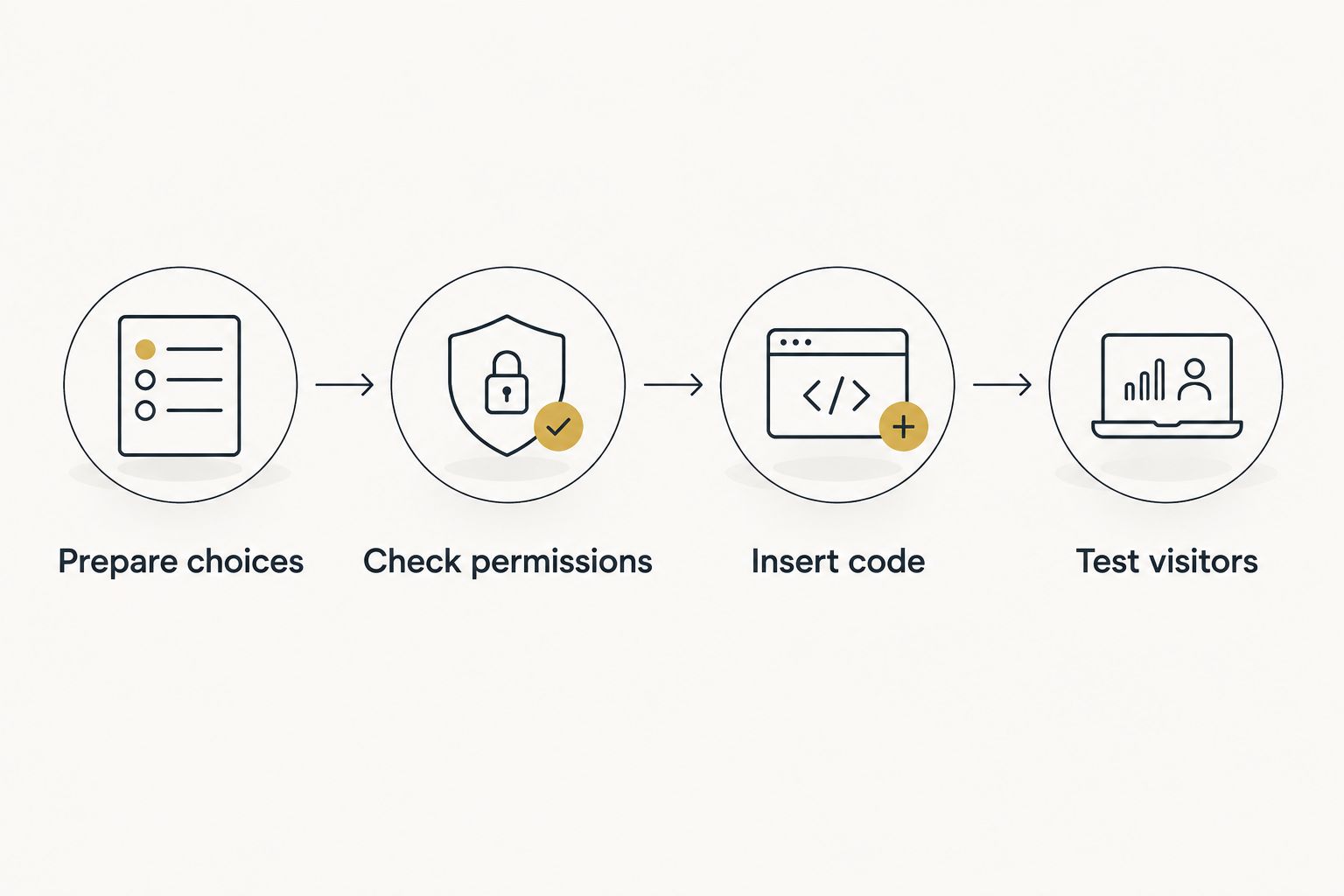
Page layout and visitor checks
Set the display area
- Give the embed a container that fits the page column. For an iframe, the standard HTML attributes width and height control its dimensions; CSS can make the width responsive.
- Add a descriptive title attribute to an iframe, such as Classroom activity picker. This names the frame for assistive technology; it does not establish that the content inside is accessible.
- As a layout check, inspect the page at 320 px, 768 px, and 1280 px viewport widths. These are test sizes, not wheel specifications.
- Adjust the container until the wheel, its controls, and its result area remain usable. Leave enough vertical space for the content actually displayed.
Expected result: The surrounding page does not require sideways scrolling, and visitors can reach the wheel's controls and read its result at each test size.
A responsive width does not guarantee a usable height. An embedded page can still contain controls below the visible frame. Check the whole interaction, including the result, rather than approving the layout from its first screen.
Test the published page
- Open the published page while signed out of the wheel service. A private browsing window is useful for this check.
- Confirm that visitors see the intended entries, not a default wheel or an editing screen.
- Make a practice selection. Check pointer input and keyboard access, and read the surrounding instructions without using the wheel.
- Reload the page and note whether the entries and selection state persist. Document the behavior you actually observe.
- Test on a phone as well as a desktop browser. Check whether the on-screen keyboard, page scrolling, or result display interferes with the activity.
Expected result: A visitor can reach the activity without the author's session, understand the rules, and complete the intended interaction.
For a 2026 landing page, check the published address after any editor update. Editor previews and public pages can handle embedded code differently. Approve the visitor view, not just the draft.
Variant: update the activity without rebuilding the page
A second workflow is useful when a teacher changes discussion prompts or an organizer changes eligible entries. Keep the page instructions stable, and update the wheel's choices through its supported editing method.
- Identify whether the embed loads a persistent wheel or contains a fixed copy of its configuration.
- Update the entries using the provider's documented method. Do not assume that changing your local wheel updates the public embed.
- Open the published page in a fresh session. Compare the visible entries with your revised list.
- If the embed uses a fixed configuration, replace its code with the revised supported snippet and publish again.
Expected result: Visitors see the revised list, and the surrounding instructions still describe the current selection rules.
For list preparation, see the guide to importing a Google Sheets name list into a random picker wheel. Preparing a list and embedding a wheel are separate tasks; completing one does not automatically complete the other.
Keep a dated activity note for your 2026 lessons. Record which list is intended, whether selected entries remain eligible, and who is allowed to edit it. That note is more useful than relying on memory when another teacher runs the page.
Troubleshooting
The frame is blank or refuses to connect
Open the wheel directly in a separate tab. If it works there but the browser reports a framing restriction, use the provider's approved embed method or switch to a normal link. You cannot remove the provider's framing restriction from your own page.
The page displays code instead of a wheel
The snippet was inserted as text, or the editor does not accept that embed type. Move it into the platform's supported HTML or embed control. If the editor strips required code when saving, use an allowed integration or the linked workflow.
Visitors see a different wheel
The embed source does not reproduce the intended configuration, or the setup depends on the author's browser state. Test the provider's supported configuration method in a signed-out session. Do not share the page until the public entries match the activity.
The result or controls are cut off
Increase the frame's vertical space and inspect the surrounding container for clipping. Test again at narrow viewport widths. A larger frame can fix clipping, but it cannot make a nonresponsive embedded interface responsive.
The wheel loads, but keyboard use fails
Check whether a visitor can enter the frame, reach its controls, and return to the page using the keyboard. Your page's styling cannot repair inaccessible controls inside a third-party frame. Provide an alternative way to participate, such as a teacher-operated draw with the result stated aloud.
Customize your workflow
Use Spinthewheelapp for low-stakes classroom choices where editable entries are useful. Keep the task explicit: choose a warm-up question, assign a classroom chore, or select a discussion group. Do not present a spinner result as a substitute for professional judgment or participant eligibility checks.
For a giveaway, publish the eligibility and repeat-draw rules separately from the wheel. An embedded picker displays an interaction; it does not create a participant register or an audit record by itself.
Keep maintenance simple in 2026. Assign an owner to the page, preserve the instructions outside the embed, and retest after changing the wheel or website template. A supported integration still needs a functioning published page.
FAQ
How do I embed a decision wheel widget on my website?
Use the wheel provider's supported embed code in your website editor's HTML or embed control. Publish a test page, then verify the entries, controls, result display, and signed-out visitor access.
Can I embed Spinthewheelapp by putting its homepage in an iframe?
A homepage URL alone does not establish a supported Spinthewheelapp embed. Use documented embedding instructions if available, and confirm that the public page reproduces your intended wheel.
Why does my decision wheel work in a tab but not on my website?
The provider's framing policy or your website editor's code restrictions can block the embed. Check the browser error and editor requirements, then use an approved integration or a normal link.
Will changing my wheel automatically update the embedded version?
Automatic updates depend on how the embed stores or loads the wheel configuration. Update a test entry and check the published page in a fresh session before relying on synchronization.
Can I put a classroom name wheel on a public page?
Avoid publishing identifiable student lists on a public page. Use activity names, group labels, or non-identifying examples, and follow your school's privacy requirements.
Does embedding a wheel make its selections fair?
Embedding does not establish fairness. Fair use requires eligible entries, intentional handling of duplicates, clear selection rules, and an honest description of what the picker does.
What should I do if my website does not allow embeds?
Use a normal link to the wheel and keep the activity instructions on your page. The linked workflow avoids iframe restrictions, though visitors must leave the page to make a selection.
One last thing
Test the result display, not just the spin. A wheel that fits before selection can still show a clipped result or an unreachable next-step control afterward. Run the complete activity as a visitor before sending anyone to the page.