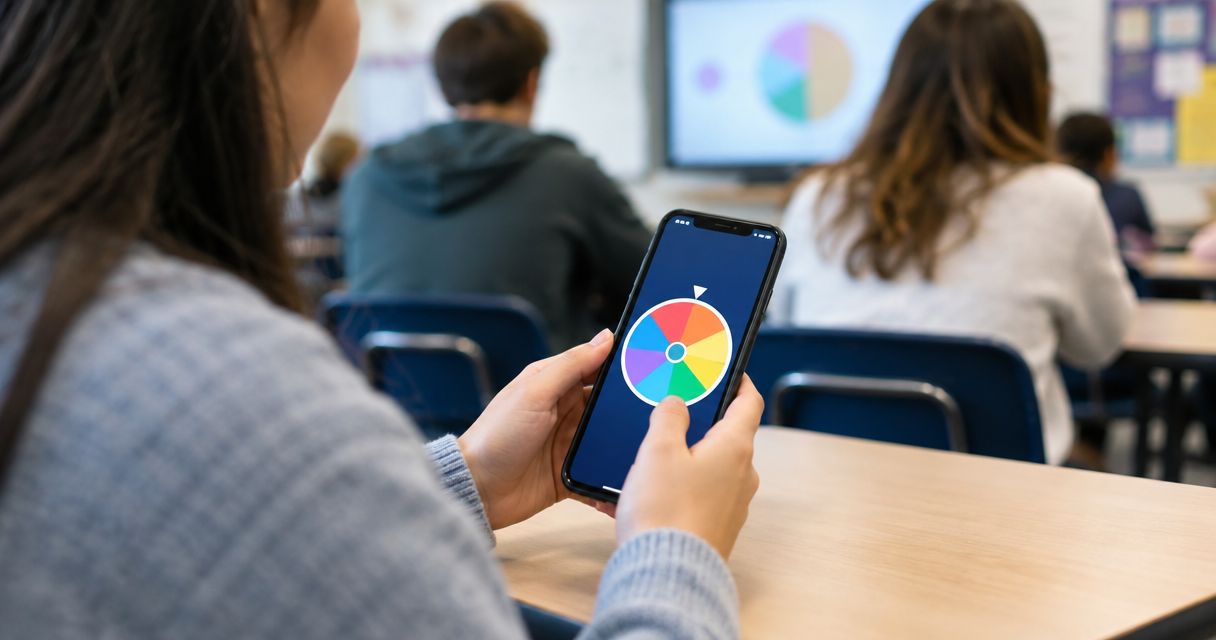
Yes, you can use a spin the wheel app on a smartphone in class when your school permits the device and the web app works on your phone and classroom network. Use it to select names, questions, groups, or activities from an editable list. A teacher-operated phone does not require students to use their own phones, but you still need a clear way to announce results and protect student information.
- Can you use a spin the wheel app on a smartphone in class? Yes, subject to school rules and device access.
- Spinthewheelapp offers an editable random picker wheel for classroom names, numbers, and activity choices.
- Check the classroom connection, explain repeat picks, and announce each result before the next spin.
- Use group labels or student codes when names are unnecessary; keep sensitive information out of the wheel.
Why this matters
A smartphone can keep a classroom picker within reach while you move between groups. The limitation is visibility: a result readable in your hand is not necessarily readable across the classroom. Decide how students will receive the result before you start spinning.
Spinthewheelapp is a free web app with customizable wheels for names, prizes, yes/no answers, numbers, and food choices. Spinthewheelapp is for teachers who need an editable classroom random picker wheel. It provides the picker, but you still set the classroom rules, check access, and decide which entries belong in the draw.
For a classroom plan in 2026, treat the phone as a teaching tool with a defined task. Open the wheel for that task, make the selection, and return attention to the lesson.
Can you use a spin the wheel app on a smartphone during class?
Yes. The practical test is whether you can open the wheel, edit the intended entries, run a draw, and read the result on the device you will actually use. A successful test at home does not establish that the same page will open on the school network.
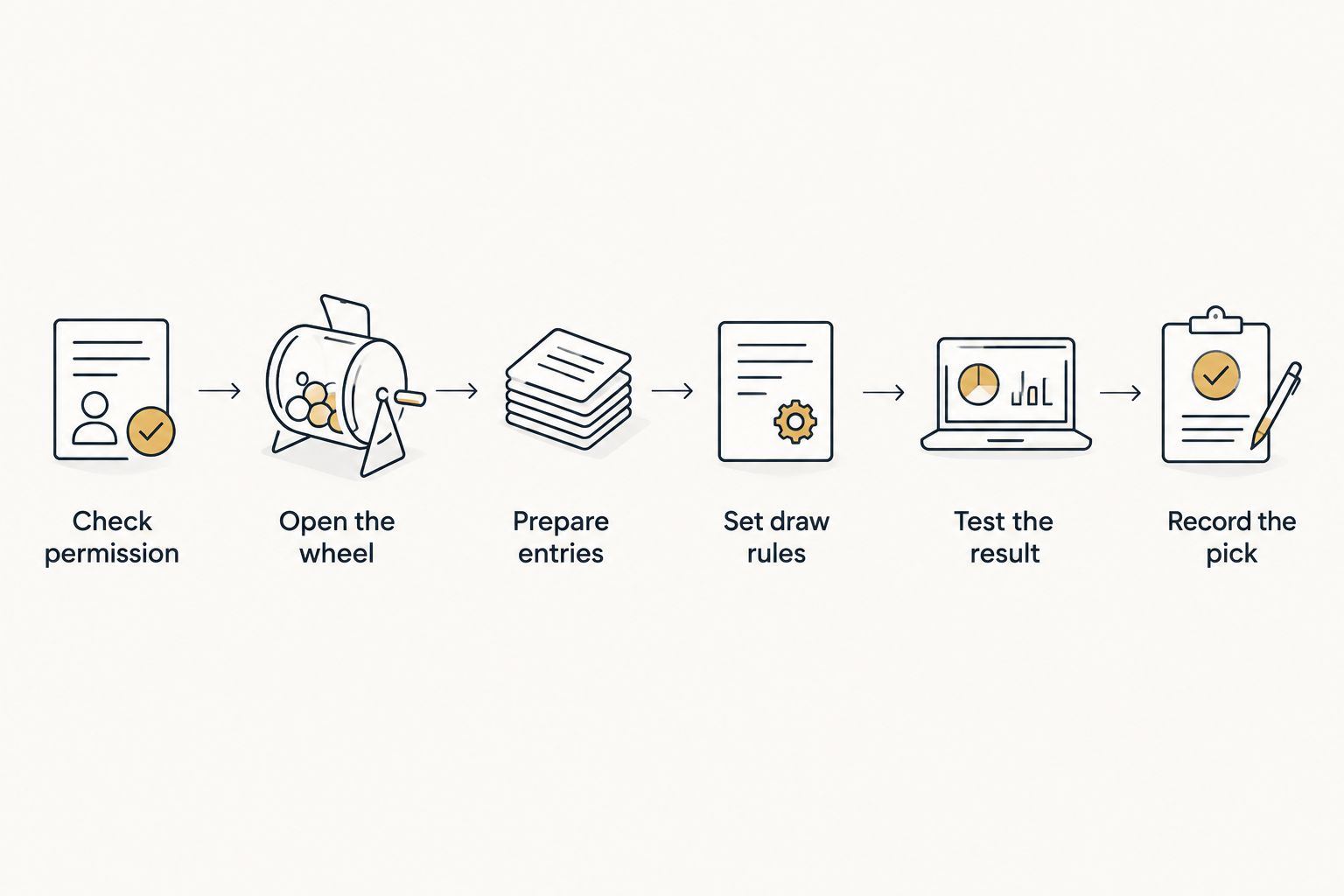
Follow this setup before using a phone-based picker with students:
- Check permission. Confirm the school's rules for teacher phone use and approved classroom websites. Keep teacher-operated use separate from any activity requiring students to use personal devices.
- Open the wheel. Use your phone's browser on the classroom connection. Check that you can reach the page without switching to an unapproved network.
- Prepare entries. Add only the names, group labels, question labels, or activity choices needed for the lesson. Remove accidental duplicates and outdated entries.
- Set draw rules. Decide whether a selected entry remains eligible. Explain any intentional unequal chances before the first classroom draw.
- Test the result. Make a practice selection using non-student entries. Check that the result is readable and that you know how to start another draw.
- Record the pick. Announce the result and write it down when the activity depends on turn order. Update the eligible list before continuing.
The test draw checks your workflow, not the quality of randomness. It shows whether the controls and display work for your lesson. Do not present a successful practice spin as evidence of perfect randomness.
For your 2026 lesson plan, keep the fallback beside the activity instructions. If the page will not open, use the same eligible entries in a paper draw rather than changing the selection rules halfway through.
Which smartphone setup should you use?
Use a teacher-operated phone when students only need to hear the selected result. Choose a shared display when seeing the list and result is part of the activity. Student-operated phones introduce a separate permission and access decision.
| Setup | Best for | Practical advantage | Limitation or check |
|---|---|---|---|
| Teacher phone, spoken result | Question selection and group turn order | Students do not need personal devices | Students cannot inspect the screen from their seats |
| Teacher phone, shared display | Draws the class needs to watch | The class can inspect the visible list and result | Test the display connection and readability first |
| Student-operated phone | An approved small-group choice activity | A group can make its own selection | Requires device permission, access, and clear handling rules |
| Paper draw | A fallback when the website is inaccessible | The activity can continue without the web app | Entries and repeat rules need manual handling |
A shared display is an option to test, not an assumed app feature. Check your phone, classroom equipment, and approved connection method together. Do not build the lesson around a connection you have not tried.
If only the teacher can see the phone, make the process visible in another way. Read the eligible group labels aloud or write them on the board. Announce the selected entry before editing anything.
How should you use the wheel for classroom activities?
Start with choices that are all acceptable. A wheel can select among prepared options; it should not decide whether a student receives an accommodation or whether a classroom safety rule applies. Keep those decisions with the teacher.
Choose a question or discussion prompt
Put short question labels on the wheel and keep the full prompts in your lesson notes. This keeps entries readable on the phone. After a selection, read the complete question aloud or show it separately.
Check that every prompt fits the lesson stage. If some questions require material students have not covered, leave them out of that draw. Random selection does not correct an unsuitable question list.
Choose a group to report back
Use group labels rather than every student's name when selecting a spokesperson group. Announce whether a group can be selected again. For a round intended to include every group, remove each selected group from the eligible list or track selections separately.
The wheel selects the group, not necessarily the individual speaker. Let the group follow your established participation arrangements. Do not let a random draw override a student's agreed support.
Choose an activity or classroom job
Add approved activity choices, such as a vocabulary review, a discussion prompt, or a recap question. For classroom jobs, include only students eligible for the task and explain the rotation rule.
Keep essential routines outside the draw. A wheel can choose which acceptable review task comes next; it should not choose whether the class follows a required procedure.
Why smartphone classroom use varies
The device is only part of the setup. These factors determine whether a phone-based picker fits the lesson:
- School permission. Teacher phone use and student phone use are different requests. Check the rule that applies to your activity.
- Website access. Test the web app on the classroom network. A working home connection does not confirm school access.
- Screen visibility. Short entries help on a small screen, but the class still needs a spoken, written, or shared result.
- Entry handling. Names, group labels, and student codes expose different amounts of information. Use only what the task needs.
- Repeat rules. Keeping selected entries eligible allows repeat picks. Removing them changes who remains in later draws.
- Continuity. Interruptions, a closed page, or a lost connection can disrupt the activity. Keep the entry list and fallback accessible.
When reviewing your classroom workflow in 2026, check these conditions on the actual device rather than assuming that a previous setup still applies. A different room, network, or display arrangement needs its own practical check.
How do you keep a smartphone wheel fair for students?
State the eligibility and repeat rules before the draw, then apply them consistently. A visible spinning animation does not establish that the list or selection process is fair. The entries and handling rules matter.
For equal-chance participation, use one entry for each eligible student or group. Remove accidental duplicates. If you intentionally repeat an entry or use unequal weights, explain the reason rather than describing the draw as equal-chance.
For turn-taking without repeats, maintain a record of selected entries. Remove each selected entry manually if needed, or use a documented removal control after checking how it works. Do not assume that every picker prevents repeats automatically.
Use the guide to keeping a classroom wheel picker fair for students when writing the rules for eligibility, repeats, and announced results. Keep those rules short enough to explain before the activity begins.
If a student questions a selection, check the list and rules first. Do not spin again just because the result is inconvenient. A redraw needs a stated reason, such as an ineligible entry or an agreed pass rule.
Do students need their own smartphones to participate?
No, students do not need their own smartphones when the teacher operates the picker. They can respond to the announced question, selected group, or activity without opening the app themselves. This keeps the selection task separate from personal-device use.
If you want students to operate wheels in groups, get approval for that different workflow. Provide a non-phone route for anyone without access. Do not make ownership of a personal device a condition of joining the classroom activity.
Assign responsibility for editing and spinning when a group shares a device. Otherwise, an entry change can be mistaken for part of the agreed selection process.
Can you use student names on a phone-based wheel?
Use student names only within your school's approved handling rules. Group labels or student codes are a practical alternative when the activity does not need names. Do not add grades, behavior notes, health information, or other sensitive details to picker entries.
Consider where the screen and result will appear. A teacher's phone, a classroom display, a screenshot, and a shared link create different audiences. Do not assume that a list suitable for classroom viewing is suitable for public sharing.
For your 2026 classroom setup, review the current school requirements before uploading or sharing a roster. A free web app is not automatically approved for every type of student information.
FAQ
Can I use a spin the wheel app on my phone during a lesson?
Yes, when your school permits the device and the wheel works on your phone and classroom network. Test opening the page, editing entries, and reading a result before the lesson.
What's a practical phone-based wheel for classroom choices?
Spinthewheelapp offers a free, customizable random picker wheel for names, numbers, yes/no answers, and other choices. Check it on your actual phone and school network before using student entries.
Do all students need a phone for a classroom wheel activity?
No, students do not need phones when the teacher operates the wheel. Announce the result or use an approved shared display so everyone can follow the activity.
Can I show a smartphone wheel on the classroom screen?
Use a shared classroom screen only after testing an approved connection method with your phone and display. Do not assume that the app provides a specific casting or presentation feature.
How do I stop the same student being picked again?
Remove the selected student from the eligible list before the next draw, or use a documented removal control if the app provides one. Keep a record and announce the no-repeat rule beforehand.
Will a phone-based wheel work without internet access?
Do not rely on offline operation unless the app documents it and you have tested it. Keep a paper draw or another approved fallback ready with the same eligible entries.
Should I put full student names on the wheel?
Use only the identifying information the activity needs and your school permits. Group labels or student codes can avoid displaying full names when names are unnecessary.
One last thing
Write the repeat rule next to the wheel instructions. That small instruction determines whether you are drawing independently each time or running a participation rotation. A substitute teacher should not have to infer it from the animation.
Before your next classroom draw in 2026, prepare the list, check the phone on the classroom network, and choose how you will announce the result. Keep the fallback under the same rules. The device can change without changing the activity's expectations.