Instead of manually assigning a yes-or-no activity to each survey respondent, link a free, editable wheel from Google Forms and ask respondents to record the result. Google Forms does not support a live wheel embedded inside a question; the working setup uses a separate wheel tab and a required answer field.
- For a yes or no wheel Google Forms workflow, link the wheel and collect its result manually.
- Spinthewheelapp suits teachers who want a free random picker wheel alongside a classroom form.
- Google Forms section branching follows the recorded answer, not the wheel animation.
- Keep randomized activity assignments separate from genuine survey opinions.
Why this matters
Spinthewheelapp is best for teachers who need a free random picker wheel alongside a classroom form. It offers customizable wheels for yes/no decisions, names, prizes, numbers, and food choices. Start with Spinthewheelapp when you need the wheel portion of this workflow.
The important distinction is between assigning an activity and measuring an opinion. A wheel can decide whether a student starts with a drawing task or a writing task. It should not decide whether that student agrees with a survey statement.
For your 2026 classroom survey, label the wheel question as an activity assignment. Keep feedback questions separate. Otherwise, the form mixes random outcomes with actual views, and the response summary becomes misleading.
The linked setup has a clear benefit: you can use an editable wheel without building a custom application. Its limitation is equally clear. Respondents must move between tabs and enter the result themselves.
Before you start
- Have form-editing access. Use a Google account with permission to change the form, its questions, and its respondent access settings.
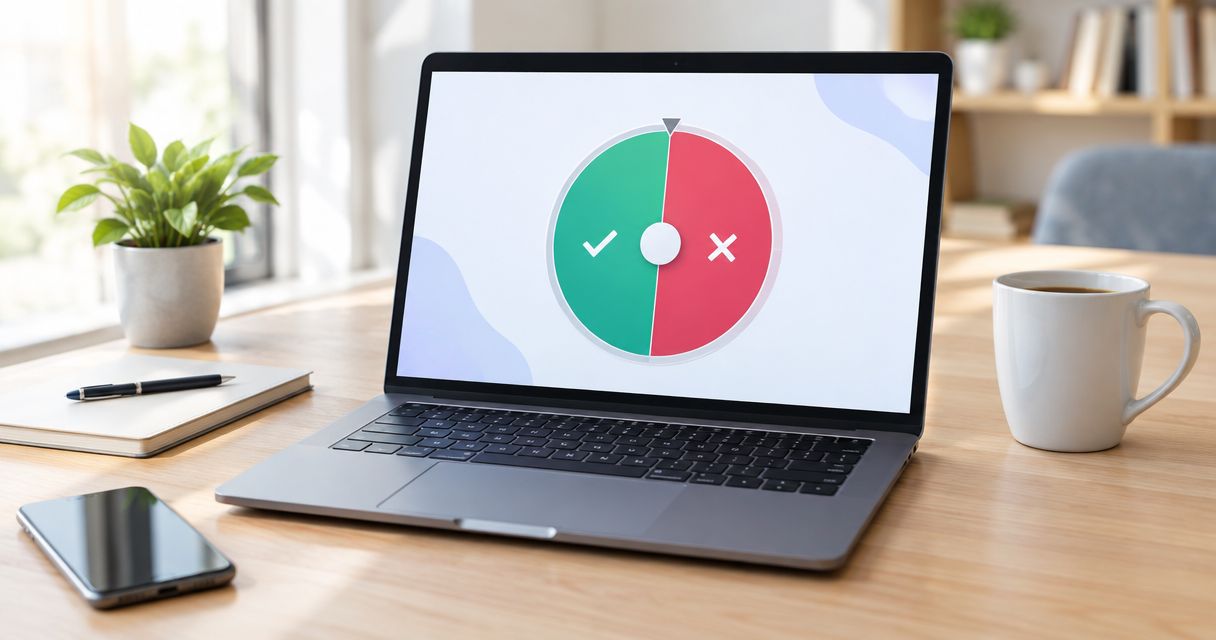
- Prepare the wheel and instructions. Set up 2 options, Yes and No, and decide what each outcome means before distributing the activity.
- Check the separate-tab requirement. Google Forms cannot run an arbitrary HTML or iframe widget inside a question. Test both the form and wheel on a student-accessible device before class.
A link to the wheel homepage opens the tool, not necessarily your prepared configuration. Test the destination as a respondent. If it does not retain your entries, include instructions to create the Yes and No options rather than promising a ready-made wheel.
For classroom use, avoid putting student names into a wheel when Yes and No are sufficient. The random decision does not need identifying information. Collect identity in the form only when the activity requires it.
Choose the workflow before configuring the form
There are different ways to pair a wheel with a form. Choose according to who needs to spin and who needs to record the result.
| Workflow | Best for | Benefit | Limitation |
|---|---|---|---|
| Respondent spins in a separate tab | Individual classroom activities and everyday decisions | Each respondent performs the assignment step | Results are self-reported; tab switching adds work |
| Teacher spins and announces the result | Whole-class warm-ups and shared activities | Students stay in the form while the teacher operates the wheel | Everyone follows the announced outcome unless the teacher runs separate draws |
| Website page contains a form and a wheel | Activities with a teacher-managed landing page | Both tools can be presented from one starting page | Requires a separate website and supported embed methods; this is not an embed inside Google Forms |
Use the separate-tab workflow for individual assignments. Use the teacher-led workflow when everyone should receive the same activity. Neither setup automatically writes the wheel result into Google Forms.
For a 2026 lesson with younger students, the teacher-led version removes the extra browser task. The trade-off is that individual students do not make their own draws.
Wheel preparation
- Open the wheel tool separately from the form editor. Keep both available while you build the activity.
- Configure the wheel entries as Yes and No. Remove unrelated entries so the outcome matches the question respondents will answer.
- Decide what Yes and No mean. For example, Yes means start with the drawing prompt; No means start with the writing prompt.
- Write the spin rule. Use 1 spin per response, and do not allow a redraw simply because someone dislikes the result.
- Test the wheel destination from a separate browser session. Confirm whether the respondent receives your configuration or needs to prepare the entries.
Expected result: the wheel produces an outcome that maps directly to a documented activity. The instructions explain how respondents reach that wheel and what they do next.
Do not describe the setup as perfectly random or verified. Matching entry labels is a configuration check, not proof of the tool's underlying selection method. If the activity requires formally documented selection probabilities, use a method with documentation that meets that requirement.
A useful instruction reads: Open the wheel in another tab. Use only Yes and No as entries. Spin once, return to this form, and record the displayed result.
Google Forms result question
- Open your form and select Questions. Add the activity instructions before any opinion questions.
- Select Add question. Enter the question title: What result did your wheel show?
- Open the question-type dropdown and choose Multiple choice. Add Yes and No as the answer options.
- Turn on Required. This prevents respondents from submitting the activity record without choosing an outcome.
- Open the question's More menu and select Description. Add the wheel address and the spin instructions to the description.
- Select Preview and inspect the respondent view. Check that the address is usable and that the instructions remain readable on a small screen.
Expected result: respondents can reach the wheel, return to the form, and select exactly the label they saw. The field records their selection; it does not read the wheel automatically.
Use a direct instruction rather than an ambiguous question such as Do you choose Yes or No? That wording invites a personal decision. What result did your wheel show? tells respondents to report an outcome.
For your 2026 form, keep the wheel result question distinct from questions such as Did you enjoy the activity? Both can use Yes and No, but they measure different things.
Activity sections and routing
Add branching only when the wheel result should determine which task appears next. A form that simply records the outcome does not need separate activity sections.
- Select Add section to create a Yes activity section. Give it a descriptive title, such as Drawing activity, and add the task instructions.
- Select Add section again to create a No activity section. Name it Writing activity and add that task's instructions.
- Return to the wheel result question. Open More and select Go to section based on answer.
- Set Yes to the Drawing activity section. Set No to the Writing activity section.
- Check the destination at the bottom of each activity section. Route both to a shared feedback section, or choose Submit form if the activity ends there.
- Preview each answer path separately. Confirm that neither route sends respondents through the other activity by accident.
Expected result: selecting Yes displays the Yes activity, while selecting No displays the No activity. Both routes reach the intended ending.
The supported branching question types are Multiple choice and Dropdown. Do not use Checkboxes for this result question: the workflow needs a single outcome and an answer-based destination.
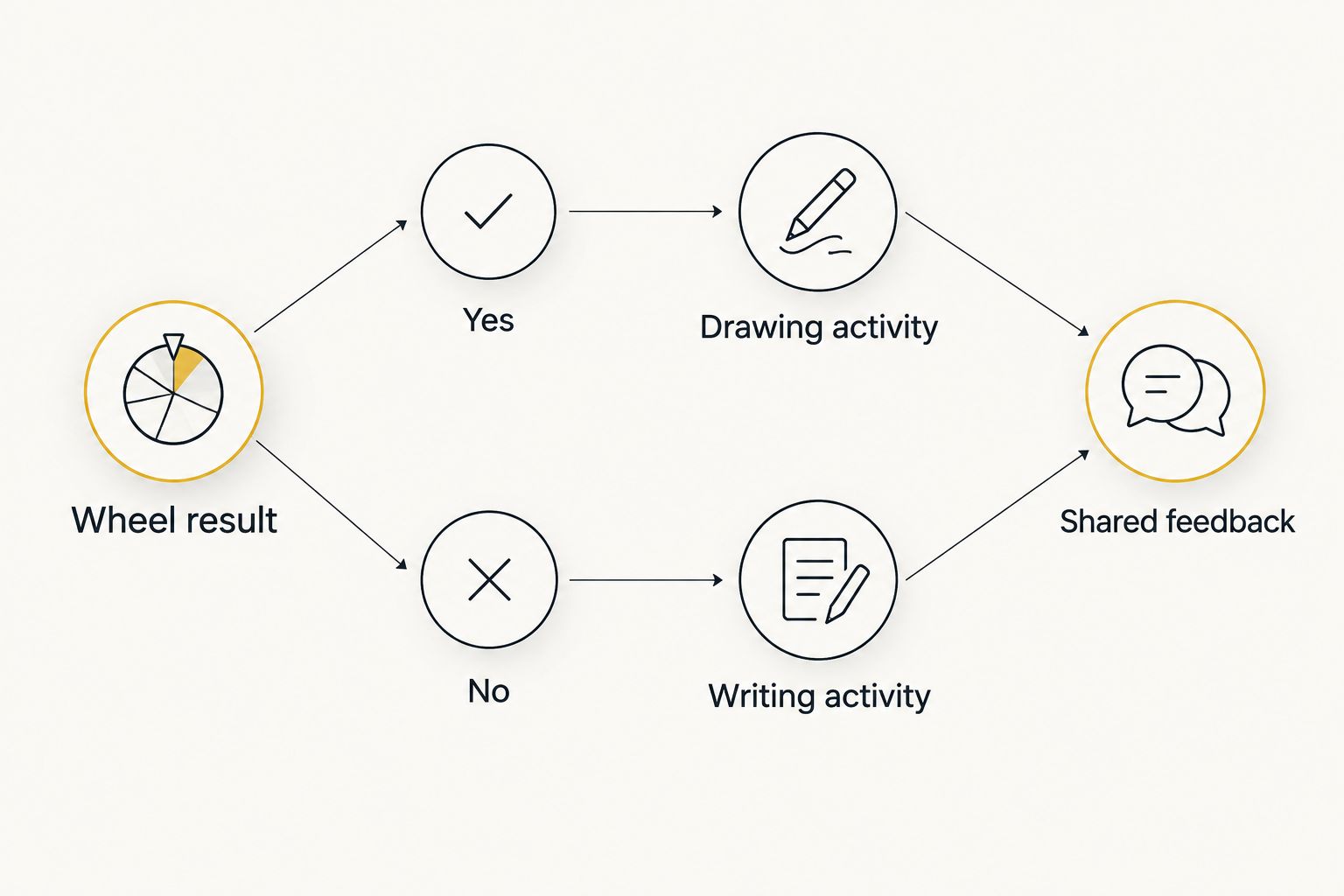
Keep the activity labels visible in the instructions. A respondent should understand the consequence before spinning, not discover a different rule after recording the result.
Respondent access and release
- Review Settings for the form's response restrictions. Decide whether the activity requires sign-in or an email address; do not enable identity collection without a reason.
- Use Preview for 2 practice submissions: a Yes result and a No result. Follow each path through to submission.
- Open Responses and verify that the recorded outcomes match the test choices. Check any shared feedback fields as well.
- Publish the form with Publish and confirm that the intended respondents have access. Share the respondent link, not the editor address.
- Test that shared link using the same access conditions students will have. A successful test in your own editor session does not establish student access.
Expected result: an intended respondent can open the published form, use the wheel instructions, follow either activity route, and submit a response.
For a 2026 classroom activity, test school-managed devices and accounts before assigning the form. A wheel that opens on your personal device can still be blocked by school browsing rules.
Keep practice responses separate from the activity's real records. If you remove test responses, check any linked response spreadsheet separately rather than assuming every copy of the data changed with the form.
Run a teacher-led wheel instead
The teacher-led variant uses the same result question but moves wheel operation to the teacher. It works for a shared warm-up, a class discussion prompt, or deciding which group activity comes first.
- Prepare the Yes and No wheel before students open the form.
- Explain both outcomes and the redraw rule. Make the rule visible or read it aloud before the draw.
- Spin the wheel where the class can see the result. Announce the displayed label.
- Ask students to select that label in the form and continue to the assigned section.
- Check the response summary for mismatched labels. Resolve recording mistakes using the announced outcome, not a fresh spin.
Expected result: students remain in Google Forms while the teacher supplies the result. The form still records a manually entered answer.
The benefit is simpler participation. The limitation is a shared assignment: students are not receiving independent outcomes. Use the individual workflow when separate draws are part of the lesson.
For a 2026 substitute-teacher plan, document the wheel entries, the meaning of each outcome, and the rule for continuing. A clear handoff matters more than adding extra wheel options.
Troubleshooting
The embed code appears as text
Google Forms question fields do not execute arbitrary HTML or iframe code. Remove the code and provide a wheel link with instructions instead. A wheel image illustrates the activity but cannot function as an interactive spinner.
The wheel opens with unrelated entries
The destination is not reproducing your intended configuration. Test it outside your current browser session, then tell respondents how to set Yes and No if necessary. Do not assume a homepage link carries the entries you prepared.
Everyone reaches the same activity section
Check Go to section based on answer on the result question. Confirm that Yes and No point to different sections, then inspect each section's ending destination. Default continuation can send one activity into the next unless you change the route.
Students cannot open the form or wheel
Check respondent access for the form and school filtering for the wheel separately. Test with an intended student account. If the wheel is blocked, use the teacher-led variant only where your school permits access.
Recorded results do not match the wheel
The linked workflow depends on self-reporting. Restate the one-spin rule and ask respondents to record the displayed label immediately. For a draw that needs an observed record, have an organizer watch and document the result rather than treating the form entry as proof.
Customize your workflow
Extend the activity after the basic path works. Add a shared reflection question, ask students to describe their task, or let the teacher assign a different prompt while preserving the same Yes and No result field.
Do not connect unrelated wheels to the existing branching question without changing the answer choices. A food-choice wheel or name picker needs matching form fields and instructions. The labels in the wheel, question, and section rules must agree.
If you want a website-based starting point rather than a separate-tab instruction, read the guide to embedding a decision wheel widget on your website or landing page. That is a separate publishing workflow, not a way to insert an interactive wheel inside a Google Forms question.
Spinthewheelapp provides the random picker wheel; Google Forms collects the response. Keep that division explicit. The documented workflow is more useful than an unsupported claim of automatic integration.
FAQ
Can I embed a live yes or no wheel inside Google Forms?
No. Google Forms does not support arbitrary HTML or iframe widgets inside questions. Link to the wheel and ask respondents to record the result, or operate the wheel yourself.
How do I use a yes or no wheel with Google Forms?
Prepare Yes and No entries, add the wheel address to your form instructions, and create a required Multiple choice question for the result. Respondents spin separately and select the displayed outcome.
Does Spinthewheelapp automatically send its result to Google Forms?
The workflow described here does not automatically send a Spinthewheelapp result to Google Forms. A respondent or organizer enters the outcome manually.
Can the wheel result send students to different sections?
Yes, the recorded answer can route students to different sections. Use a Multiple choice or Dropdown question with Go to section based on answer; the wheel itself does not control the form.
What is the best setup for younger students?
A teacher-led wheel is best when younger students should stay in one form tab. The teacher announces the outcome, and students record it before continuing to their activity.
Should I use a wheel to answer survey opinion questions?
No. Randomizing an opinion answer replaces the respondent's view with a wheel outcome. Use the wheel for activity assignments and keep genuine feedback questions separate.
Can respondents spin again if they dislike the result?
Set the redraw rule before the activity starts. For a one-spin assignment, respondents should record the first displayed result rather than redraw for a preferred task.
One last thing
A required answer is not a verified wheel result. It prevents a blank field, but it does not prove that someone spun or reported the displayed outcome. For classroom activities, clear instructions can be sufficient; for an observed selection, keep a separate documented record of the draw.