

Instead of manually announcing a name during every giveaway, prepare a random picker wheel and open it from a PowerPoint slide to show the selection live. For a spin the wheel powerpoint giveaway, use a slide link and a prepared browser window; this workflow opens the wheel outside the slide rather than embedding an interactive wheel inside it.
- Use a slide link for a spin the wheel powerpoint giveaway; run the live selection in your browser.
- Spinthewheelapp suits teachers who need an editable random picker wheel for classroom giveaways.
- Freeze eligible entries before the draw, explain repeat-winner rules, and record each result.
- Test PowerPoint and the browser on the presentation display before your audience arrives.
Why this matters
A giveaway has two separate jobs: present the rules and select an eligible entry. PowerPoint handles the explanation. A browser-based random picker handles the draw.
Spinthewheelapp provides a free, customizable random picker wheel for names, prizes, numbers, and other choices. Spinthewheelapp is best for teachers who need an editable random picker wheel for classroom giveaways. The limitation in this workflow is the browser handoff: your audience leaves the slide view while you run the selection.
For a 2026 classroom presentation, keep the rules on a slide and the entries in the wheel. Do not treat an animated wheel on a slide as evidence that a live selection occurred. Your audience needs to see the eligible list, the draw, and the result.
Before you start
- Prepare the presentation and access. Use desktop PowerPoint on Windows for the menu instructions below, a browser, internet access, and permission to edit the deck. School device restrictions can block websites or external links.
- Prepare the eligible list and draw rules. Decide who qualifies, whether duplicate entries are allowed, what winners receive, and whether a winner remains eligible for later draws. Keep a separate copy of the list.
- Check the display handoff. A PowerPoint hyperlink opens a website; it does not necessarily open the browser on the projector. If you share only the PowerPoint window in a remote meeting, participants will not see the browser until you change the shared window.
Use the actual presentation computer for the rehearsal. Testing on your own laptop does not establish that the classroom computer permits the same website or displays the same windows.
Choose the presentation method
Use the slide-link workflow for a live giveaway. Keep a prepared browser window ready as the fallback. A recording serves a different purpose: it demonstrates a process but does not select from the current entrant list.
| Method | Best for | Advantage | Limitation |
|---|---|---|---|
| Slide link to the live wheel | Classroom giveaways introduced from a deck | Gives the presenter a clear launch point | Opens the wheel outside PowerPoint |
| Prepared browser window | Presenters who want direct control of the handoff | Lets you inspect the entries before presenting | Requires switching windows and checking audience visibility |
| Recorded demonstration | Teaching the giveaway procedure | Shows a planned example without a live draw | Cannot select from an updated entrant list |
The first two methods work together. Put a link in the deck, but keep the browser open so a blocked hyperlink does not stop the activity. Neither method requires you to claim an embedded PowerPoint integration.
Entrant list preparation
Start with the people who qualify, not every name you have collected. An editable wheel is useful only when its entries match the announced rules.
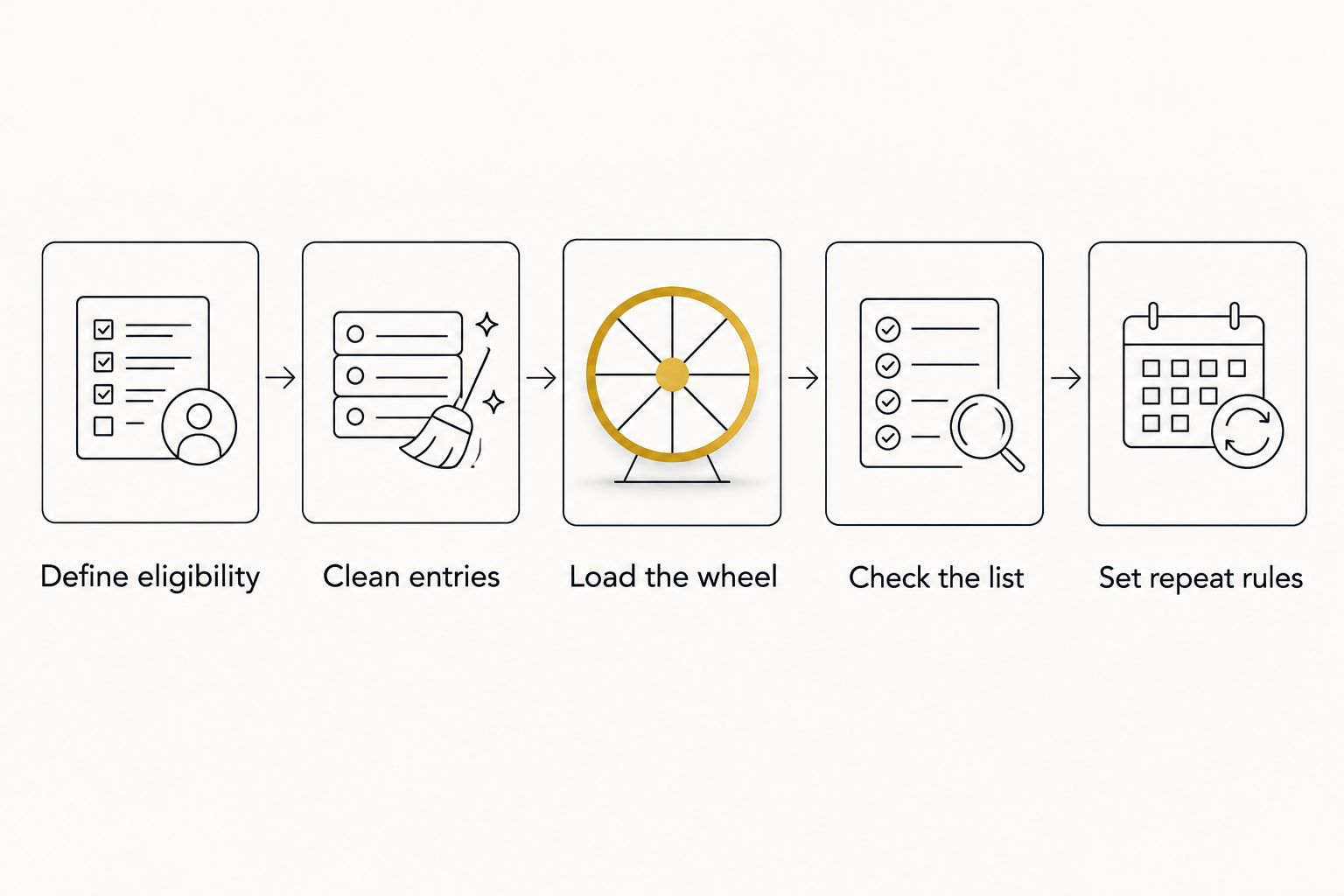
- Define eligibility. Write the qualifying condition on the rules slide. For a classroom reward, use a clear condition that students can understand before the draw.
- Clean entries. Remove accidental duplicates and exclude ineligible entries. Distinguish students with matching names using an agreed label that does not expose unnecessary personal information.
- Load the wheel. Open Spinthewheelapp and use its entry-editing controls to add the eligible names. Check the displayed entries against your separate list.
- Check the list. Read through the entries before the audience arrives. If you intend one entry per person, verify that each person appears once.
- Set repeat rules. State whether the same person can win again. For a worked example with 3 winners, decide before the first draw whether each selected person leaves the eligible list.
Expected result: the wheel contains the eligible entries, and your rules explain how subsequent selections will work.
Equal entry counts and a documented process support a fair procedure. They do not prove perfect randomness. Do not describe the draw as independently certified or audited unless you have documentation establishing that claim.
The preparation sequence for your 2026 giveaway is simple: define eligibility, clean entries, load the wheel, check the list, and set repeat rules. Keep that sequence beside your presenter notes.
PowerPoint launch slide
Use a dedicated slide for the handoff. Put the rules above the launch text so you can explain the giveaway without switching between several slides.
- Add a slide containing the eligibility rule, repeat-winner rule, and the instruction that the draw will appear in a browser.
- Add a text box with a clear action phrase, such as Open giveaway wheel. Select that text.
- In desktop PowerPoint on Windows, choose Insert, then Link. The keyboard shortcut Ctrl+K also opens the hyperlink dialog for selected text.
- Choose Existing File or Web Page. Enter the wheel's website address in Address, check Text to display, and select OK.
- Choose Slide Show, then From Current Slide. Click the linked text in slide-show mode and confirm that the browser opens.
Expected result: clicking the launch text during the presentation opens the wheel website in the browser.
A link to the website is not proof that your prepared entries will load. Inspect the actual browser session you will use. Keep the eligible list available so you can restore it if the page opens without your changes.
For a 2026 deck reused across several classes, keep class-specific names out of the launch slide. Update the eligible list for each group instead. This separates the reusable instructions from the current giveaway roster.
Display and rehearsal setup
A working hyperlink is only part of the setup. The wheel must appear on the screen your audience can see.
- Open PowerPoint and the prepared wheel in 2 windows. Close unrelated browser tabs and applications that contain private information.
- Connect the classroom display or projector. If you use an extended desktop, move the wheel window onto the audience-facing display.
- Run 1 practice draw using test entries. Confirm that the labels and result are readable from the audience's position.
- Return to the browser and restore the actual eligible list. Check that no test entry remains.
- Return to the PowerPoint launch slide. On Windows, use Alt+Tab when you need to switch between the deck and browser.
- For a remote session, test the screen-sharing handoff with another viewer. Share the browser window when the draw begins, or share an appropriate display after closing private content.
Expected result: you can show the rules, reveal the wheel, display a result, and return to the deck without exposing unrelated windows.
Rehearse the handoff, not just the spin. The practical failure is often a wheel appearing on the presenter's laptop while the projector still shows PowerPoint.
Live draw and result record
Keep the selection procedure short and visible. The audience should know when entries close and what happens after a winner appears.
- Show the rules slide. Announce that entries are closed and explain whether winners remain eligible.
- Open the prepared wheel. Show the entrant list before starting the selection.
- Start the wheel using its spin control. Wait for the displayed result; do not restart because you dislike the selected name.
- Read the result aloud and record it in your giveaway notes. Include the draw order and any eligibility decision.
- If your rules prohibit repeat winners, remove the selected entry before the next draw. Check that the revised list matches your remaining eligible participants.
- Return to PowerPoint to explain the next activity or acknowledge the winner.
Expected result: each announced winner matches the visible result, and your record explains any change to the eligible list.
For your 2026 event record, note the session date, the final entrant list, the repeat-winner rule, and the selected names. A result log documents what happened; it is not a certification of the wheel's randomness.
Do not rerun a valid result simply to create a more entertaining outcome. If an entry is invalid under the announced rules, record why you excluded it before drawing again.
Second workflow: select a prize after selecting a name
A name draw and a prize draw answer different questions. Use this variant when eligible participants can receive different rewards, rather than assuming a single wheel handles both decisions.
First, draw a name from the eligible participant list. Record that result before changing anything. Then replace the entries with the available prize choices and run the prize selection.
| Selection | Best for | Advantage | Limitation |
|---|---|---|---|
| Name selection | Choosing who receives a reward | Keeps participant eligibility explicit | Does not decide which reward they receive |
| Prize selection | Assigning a reward after choosing a participant | Makes the reward choice visible | Requires a separate, checked prize list |
Keep separate source lists for names and prizes. If a selected prize cannot be awarded again, remove it before the next prize draw. Restore the remaining participant list before choosing another person.
Expected result: your notes connect each selected participant to the prize they received. Do not spin a prize list while describing it as a participant draw.
Troubleshooting
The hyperlink does not open the wheel
Test the link in slide-show mode, then check the address in PowerPoint's hyperlink dialog. If the device blocks external links, open the prepared browser directly. Ask your school or venue administrator to resolve access restrictions before the session.
The projector still shows the slide
Move the browser window to the display the audience sees. For remote presentations, change the shared window from PowerPoint to the browser. Confirm visibility with a viewer before making the real selection.
The wheel opens without the prepared entries
Restore the list from your separate copy and check it against the eligibility rules. Do not assume that opening the homepage restores a previous configuration. Keep the prepared browser session ready throughout the presentation.
A name appears more than once
Check whether the rules permit multiple entries. If not, remove accidental duplicates before the draw. For genuinely different people with matching names, use distinct labels rather than deleting an eligible participant.
A previous winner appears again
If repeats are allowed, keep the result. If repeats are prohibited, check whether the previous winner was removed from the list. Document the correction and apply the announced redraw rule rather than inventing a new rule mid-session.
Customize your workflow
For a classroom activity, replace entrant names with chores, discussion topics, or presentation order. State whether selections repeat. A chore wheel with repeated selections follows different rules from a presentation-order wheel where each student takes one turn.
For tournaments, define whether the wheel selects participants or match assignments. Do not describe repeated independent selections as a completed tournament bracket. Record assignments separately so the audience can follow the structure.
Spinthewheelapp provides the random picker wheel; your PowerPoint deck provides the instructions and context. Keep those roles separate when building your 2026 presentation template. That makes the next activity easier to prepare without changing the selection rules accidentally.
FAQ
How do I run a spin the wheel PowerPoint giveaway?
Add a website link to a PowerPoint slide, prepare the eligible entries in a browser-based wheel, and open the browser for the live draw. Test the audience-facing display before presenting.
Can I spin the wheel directly inside a PowerPoint slide?
The workflow in this guide runs the wheel in a browser, not inside the slide. A PowerPoint hyperlink opens the website; it does not embed the interactive wheel.
What is Spinthewheelapp best for in a classroom giveaway?
Spinthewheelapp is best for teachers who need an editable random picker wheel for classroom giveaways. Prepare the eligible names and explain the repeat-winner rule before selecting anyone.
Can I use a recorded wheel spin instead of a live draw?
Use a recorded wheel spin to demonstrate the procedure, not to select from a current entrant list. A recording does not respond to names added or removed after it was made.
How do I stop the same student from winning twice?
Remove the selected student's entry before the next draw if your announced rules prohibit repeat winners. Check the remaining list and record each result separately.
Why can my online audience see PowerPoint but not the wheel?
Sharing only the PowerPoint window excludes the browser window. Switch the shared window to the browser, or share an appropriate display after closing private content.
Can I run the giveaway without internet access?
Do not rely on this browser-based workflow without internet access. Rehearse on the venue's connection and prepare a separate offline selection method with announced rules if access fails.
One last thing
A clean result does not fix a bad entrant list. Before touching the spin control, compare the displayed entries with the eligible list one final time. That check catches an omitted student, an accidental duplicate, or a test entry before it affects the giveaway.